Age Rating
Wait4it スクリーンショット
About Wait4it
Wait4It
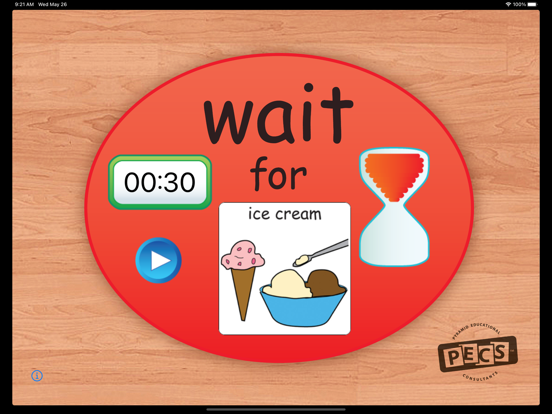
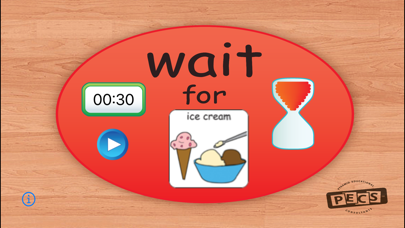
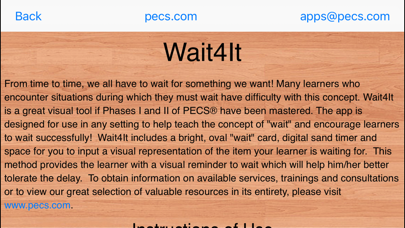
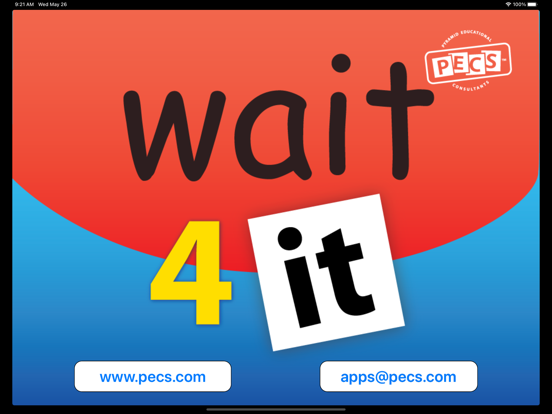
From time to time, we all have to wait for something we want! Many learners who encounter situations during which they must wait have difficulty with this concept. Wait4It is a great visual tool if Phases I and II of PECS® have been mastered. The app is designed for use in any setting to help teach the concept of "wait" and encourage learners to wait successfully! Wait4It includes a bright, oval "wait" card, digital sand timer and space for you to input a visual representation of the item your learner is waiting for. This method provides the learner with a visual reminder to wait which will help him/her better tolerate the delay. To obtain information on available services, trainings and consultations or to view our great selection of valuable resources in its entirety, please visit www.pecs.com.
Instructions of Use
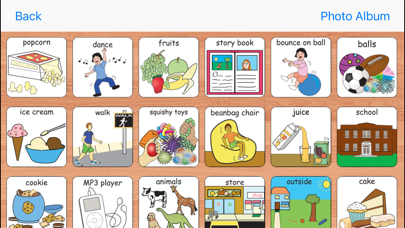
-Tap empty square (located on Wait card) to select image from library.
-Tap desired image. After selection, image will then display inside the square.
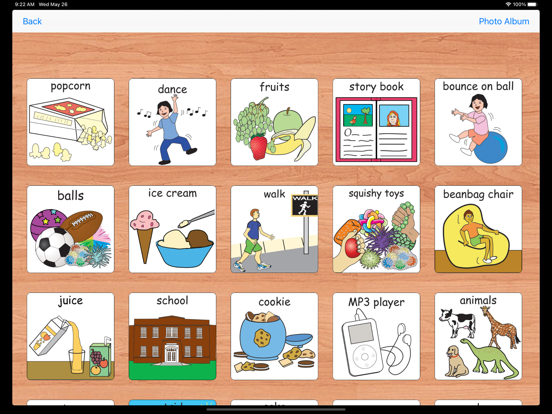
-To customize, import images from your own photo library by tapping the 'Photo Album' tab located in the upper right corner of your screen.
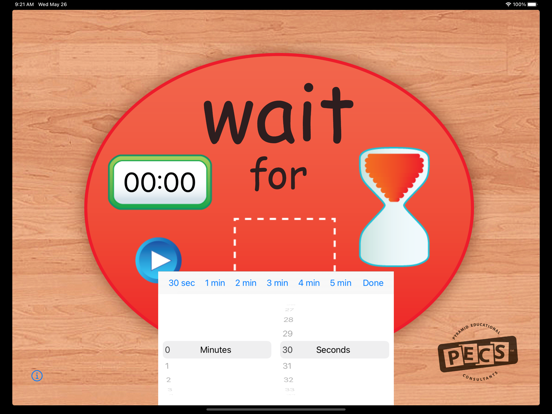
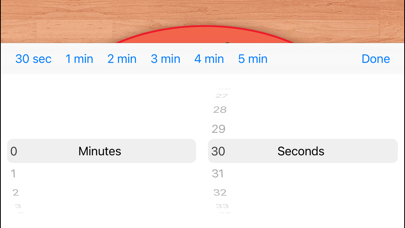
-Double tap digital timer, scroll to select desired time and tap the 'Done' button.
-Double tap 'play/pause' button (digital countdown and sand timer will commence). Note: When the countdown has ended, the timer will automatically reset to the previous time entered.
-To choose an alternate image and/or new time when in "play" mode, double tap the 'play/pause' button to pause digital countdown and sand timer. Tap the current image and reselect from library- image will then display inside the square of Wait card) and double tap 'play/pause' button to resume countdown.
Delete Images:
To delete an image from the library, tap the picture and hold for 3-5 seconds until a miniature "Delete ?" screen appears. The pre-loaded Pics for PECS images may be temporarily deleted during a single session. However, after a session has ended and the application is closed the pre-loaded Pics for PECS images will reset to their original properties (reappear) when the application is opened and a new session has started. Custom images will not be restored and are permanently removed from the app once deleted.
Sound/Notification Settings:
When the application is minimized the timer will continue to countdown. Once the timer reaches zero a system notification will appear. The notification, "WAIT is finished" will display on the main screen of your device, accompanied with a sound.

From time to time, we all have to wait for something we want! Many learners who encounter situations during which they must wait have difficulty with this concept. Wait4It is a great visual tool if Phases I and II of PECS® have been mastered. The app is designed for use in any setting to help teach the concept of "wait" and encourage learners to wait successfully! Wait4It includes a bright, oval "wait" card, digital sand timer and space for you to input a visual representation of the item your learner is waiting for. This method provides the learner with a visual reminder to wait which will help him/her better tolerate the delay. To obtain information on available services, trainings and consultations or to view our great selection of valuable resources in its entirety, please visit www.pecs.com.
Instructions of Use
-Tap empty square (located on Wait card) to select image from library.
-Tap desired image. After selection, image will then display inside the square.
-To customize, import images from your own photo library by tapping the 'Photo Album' tab located in the upper right corner of your screen.
-Double tap digital timer, scroll to select desired time and tap the 'Done' button.
-Double tap 'play/pause' button (digital countdown and sand timer will commence). Note: When the countdown has ended, the timer will automatically reset to the previous time entered.
-To choose an alternate image and/or new time when in "play" mode, double tap the 'play/pause' button to pause digital countdown and sand timer. Tap the current image and reselect from library- image will then display inside the square of Wait card) and double tap 'play/pause' button to resume countdown.
Delete Images:
To delete an image from the library, tap the picture and hold for 3-5 seconds until a miniature "Delete ?" screen appears. The pre-loaded Pics for PECS images may be temporarily deleted during a single session. However, after a session has ended and the application is closed the pre-loaded Pics for PECS images will reset to their original properties (reappear) when the application is opened and a new session has started. Custom images will not be restored and are permanently removed from the app once deleted.
Sound/Notification Settings:
When the application is minimized the timer will continue to countdown. Once the timer reaches zero a system notification will appear. The notification, "WAIT is finished" will display on the main screen of your device, accompanied with a sound.
Show More
最新バージョン 1.8 の更新情報
Last updated on 2022年04月15日
旧バージョン
Accessibility bug fixes.
Show More
Version History
1.8
2022年04月15日
Accessibility bug fixes.
Wait4it 価格
今日:
¥300
最低価格:
¥100
最高価格:
¥300
Wait4it FAQ
ここをクリック!地理的に制限されているアプリのダウンロード方法をご参考ください。
次のリストをチェックして、Wait4itの最低システム要件をご確認ください。
iPhone
iPad