The CURA TimeTrack APP is designed to facilitate timesheet entry and location tracking for candidates/employees. Amongst other growing features, TimeTrack allows employees to view daily placement information, tap to clock-in/out and have timesheet hours flow directly to the agency.
Using CURA TimeTrack:
Step 1
Tap the APP to open it.
Step 2
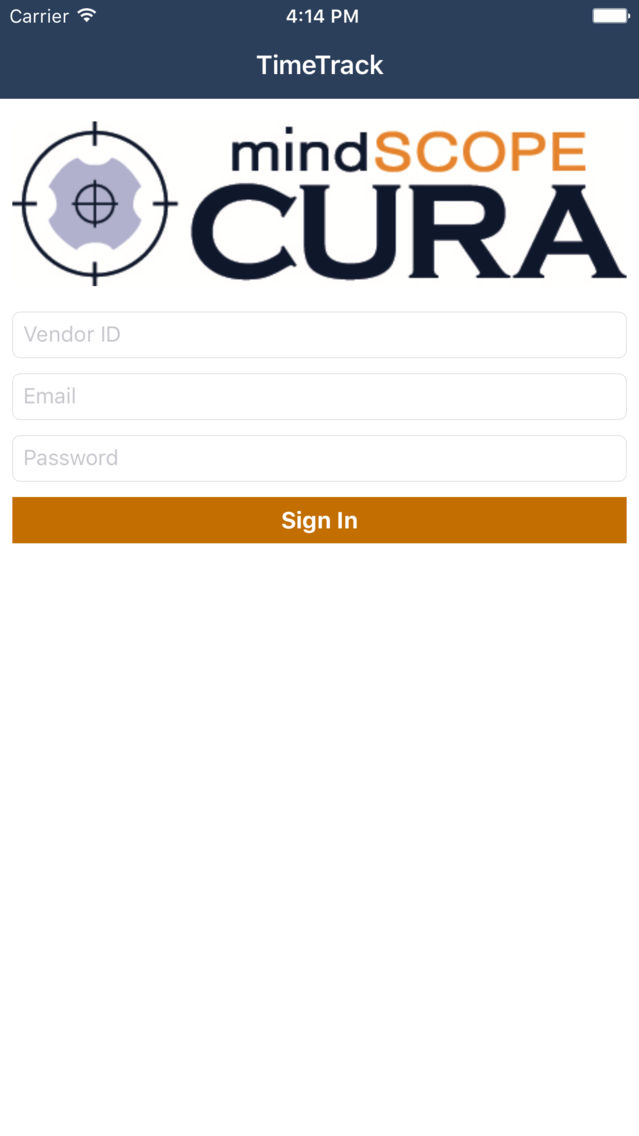
The first screen is the Login screen. Enter your information as described below to Login.
Step 3
Once logged in, users are taken to the Placements screen. This screen shows all placements for that specific user for today’s date, allowing the user to select the appropriate one to start clocking time.
Step 4
Tapping the desired placement, will open the Clock-In and Out screen.
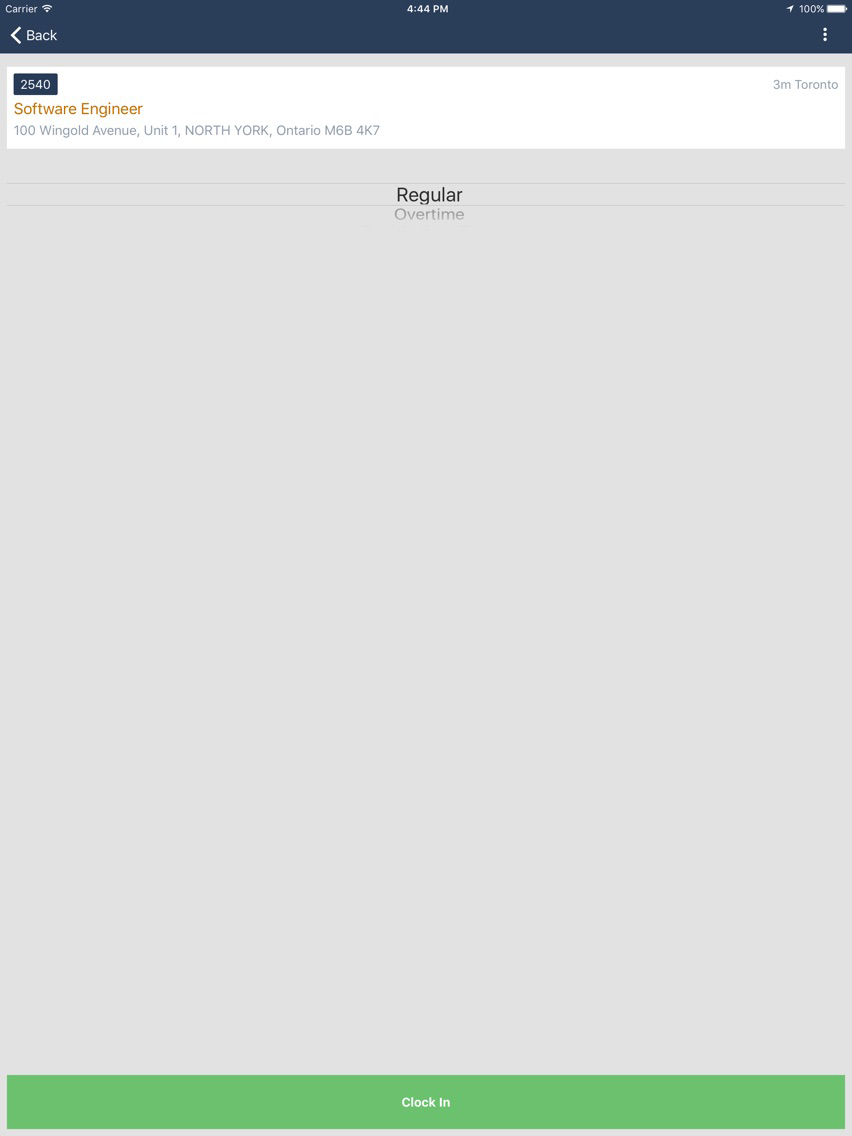
1. This screen continues to show the Job Details such as Position, Company and Location (as seen below the “Clock In/Out” title).
2. The scroll towards the bottom of the page allows for the selection of the Clock-In Type:
a. This can range between tracking Regular vs. OverTime vs. Double OverTime hours and/or can be used to track other paid hours such as Drive Time.
3. At the bottom of the page, the Clock-In button is highlighted in green to signify that it is available for selection.
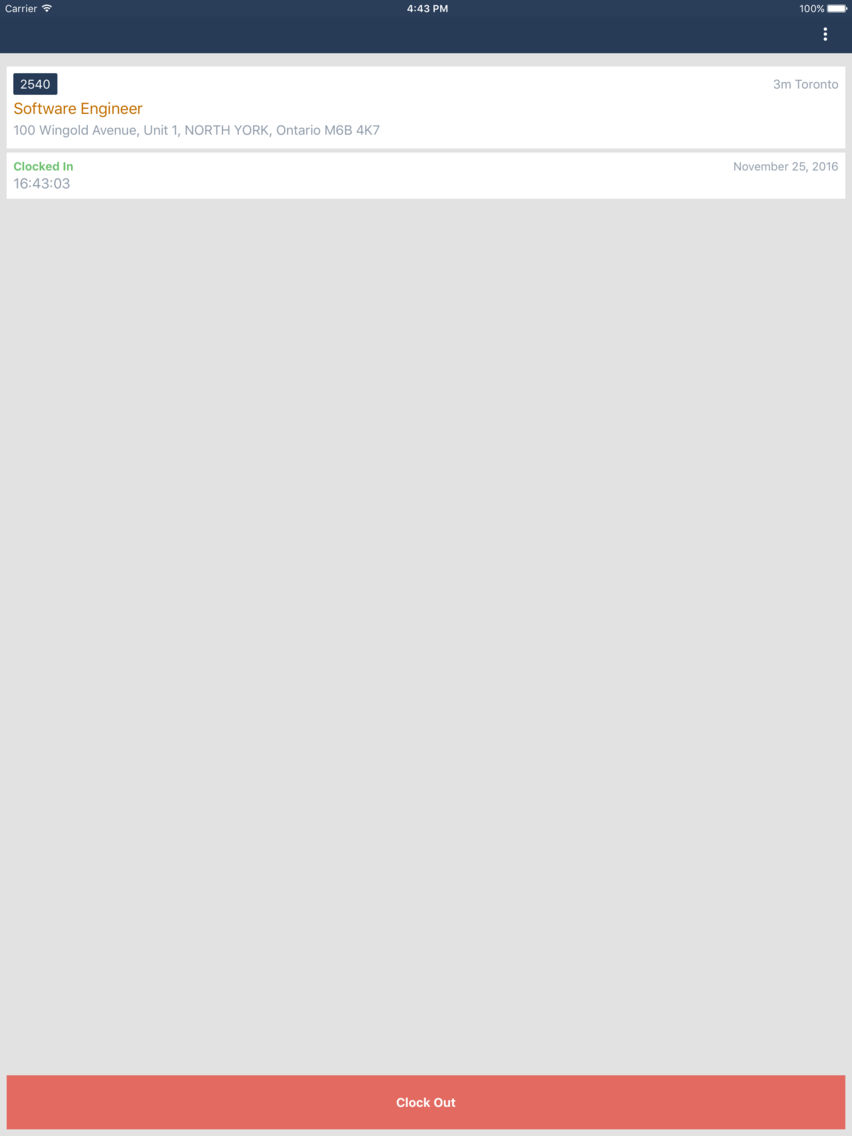
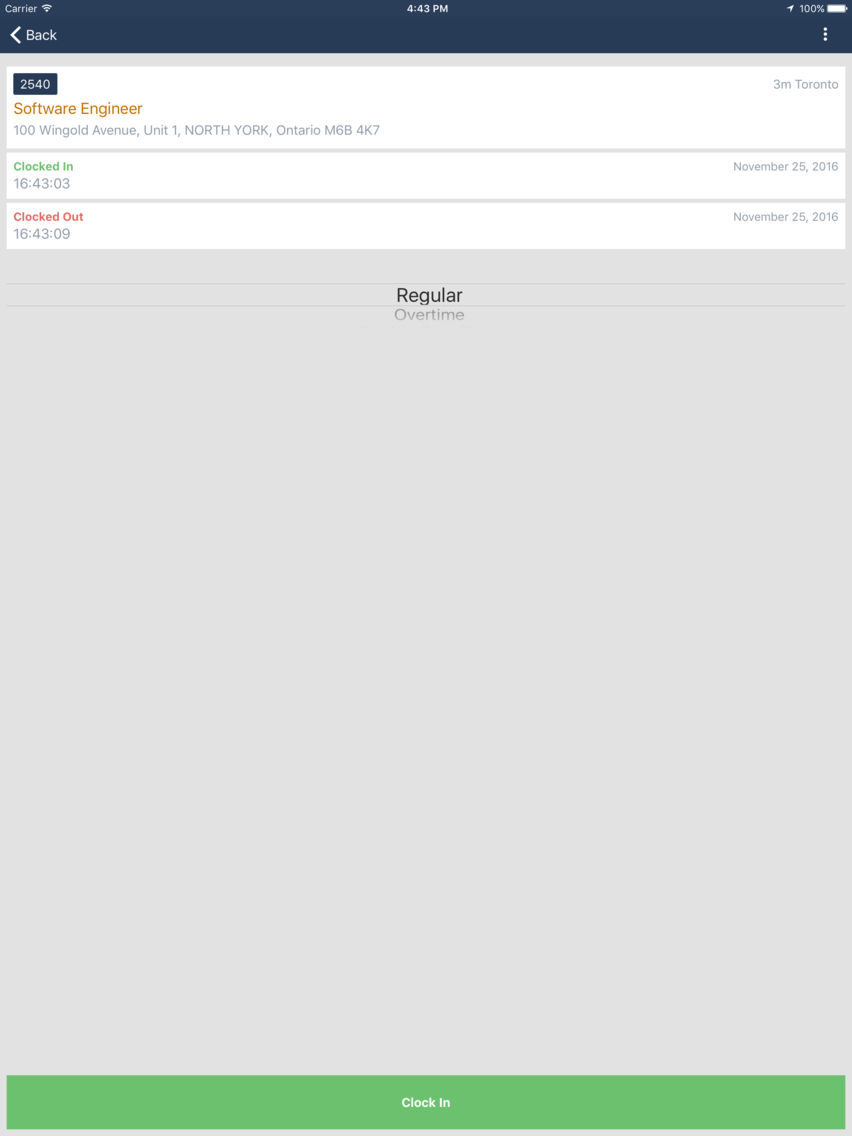
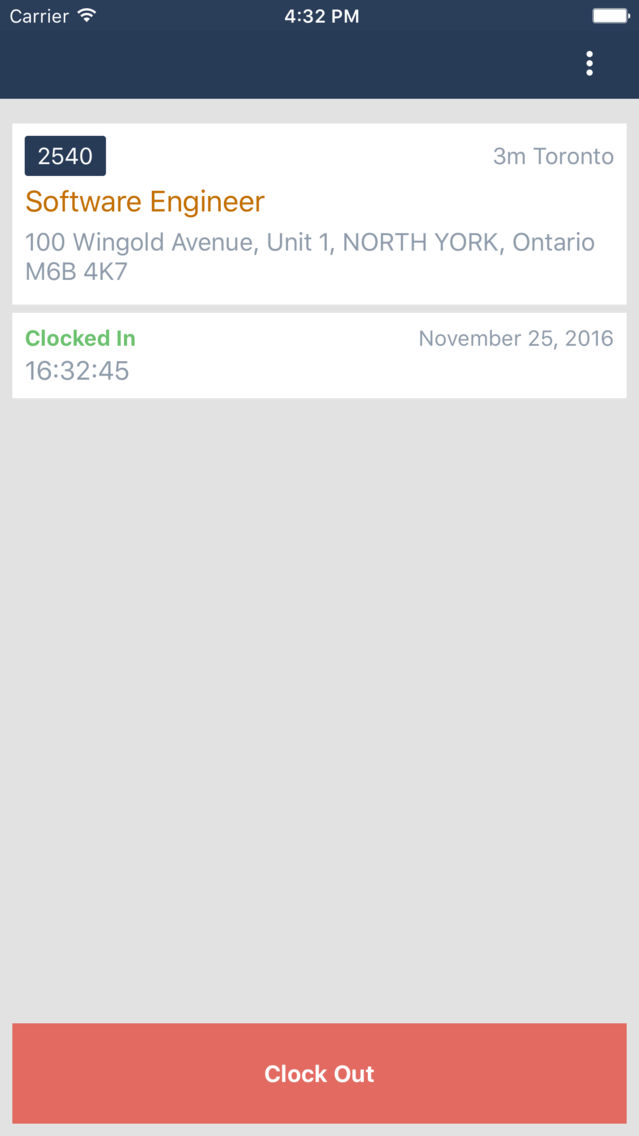
4. Once Clocked-In, the button will appear as red with the option to Clock-out. The Clocked history will also appear on the main screen.
5. When Clock-out is pressed, a confirmation message will appear, as seen below. Once Yes is pressed, it will stop tracking time (Clock-out the user) and the option to Clock-in will reappear.
Step 5
To Logout of the APP, use the triple dots at the top right of the screen. To refresh, pull down on the screen with your finger until the wheel below appears.