EtherMagic
Free
1.37.9for iPhone, iPad
Age Rating
EtherMagic 스크린 샷
About EtherMagic
An EtherMagic network consists of one EtherMagic Switch and one or more EtherMagic EndPoints. Each EndPoint must be paired with a Switch to create a network. Use the EtherMagic app to:
- Pair the EtherMagic EndPoints with Switch to create a network. Note: The EtherMagic System bundle (EM-KIT) is Plug and Play ready with each EndPoint already pre-paired with the included Switch.
- Provision management functionality for EtherMagic Switch and Endpoints, and also provides device and network statistics.
Requirement:
Ensure the Switch and Wi-Fi of your iOS device are connected to the same LAN, and Bluetooth is on.
How To Pair:
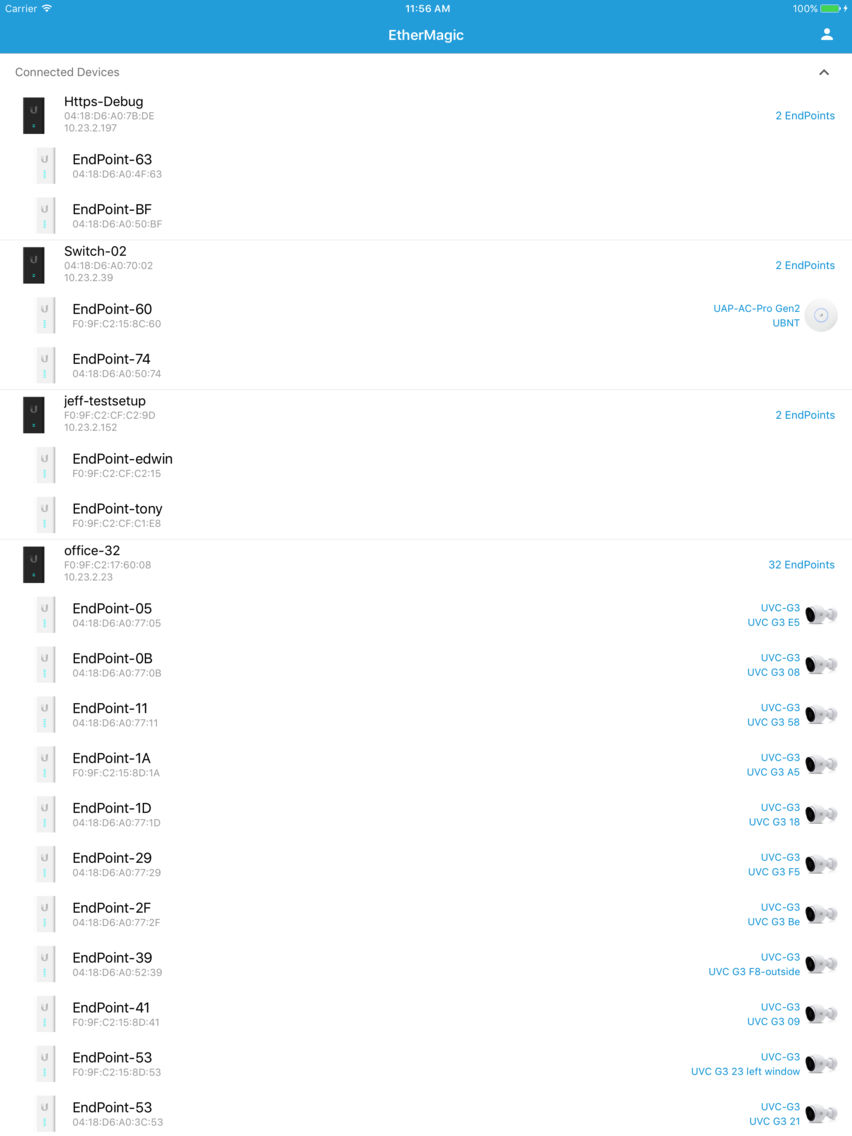
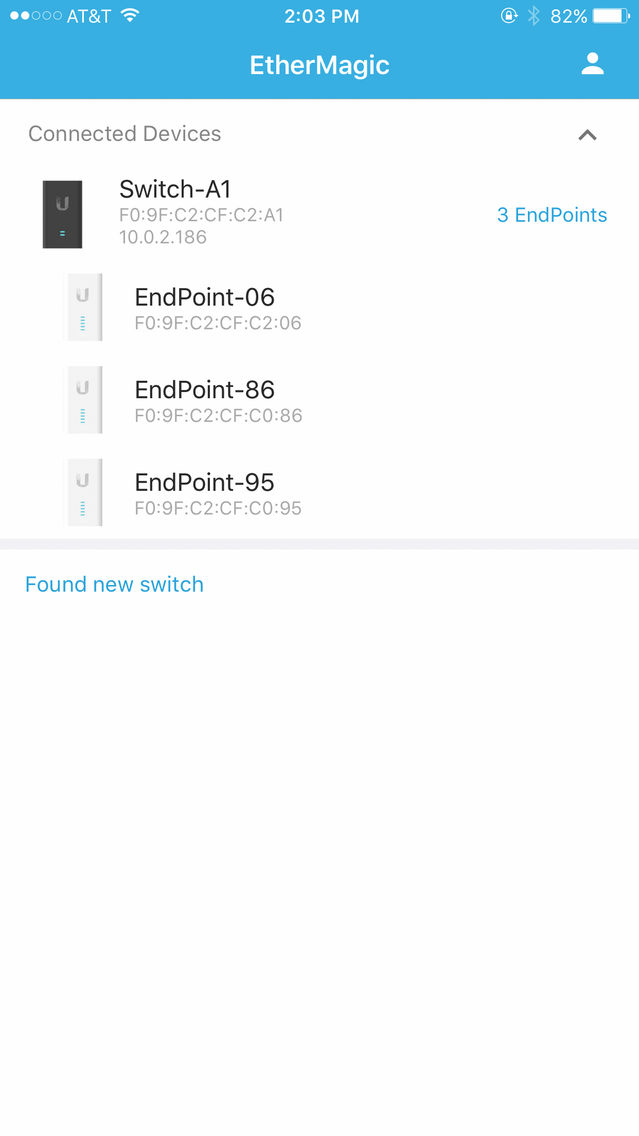
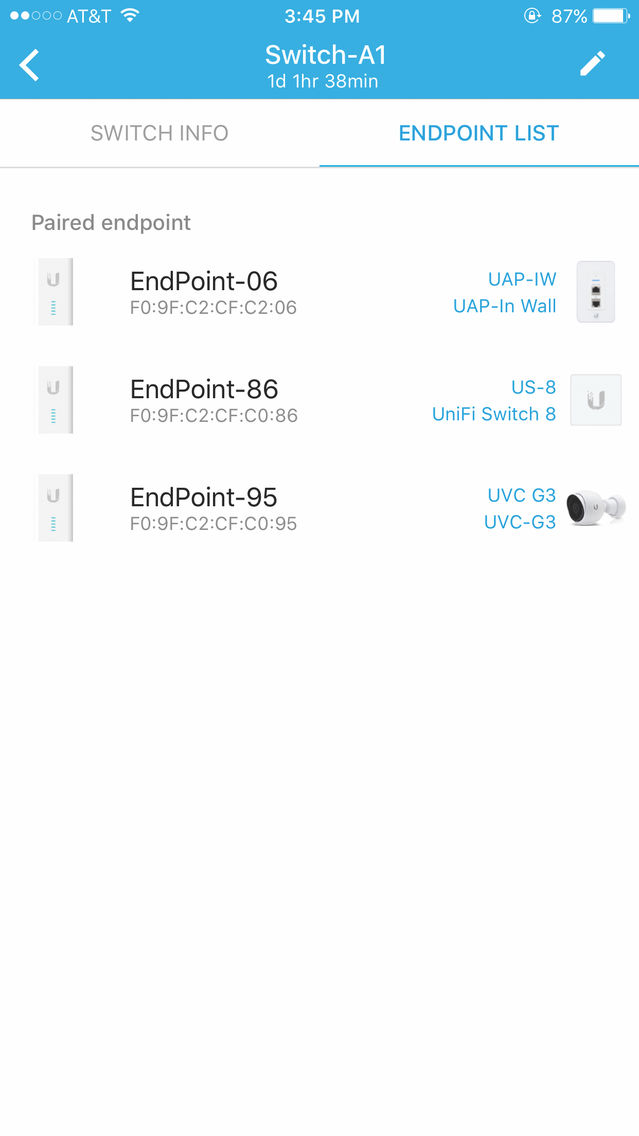
1. Launch the EtherMagic app. A list of Switches will appear. Tap the Switch you would like to pair.
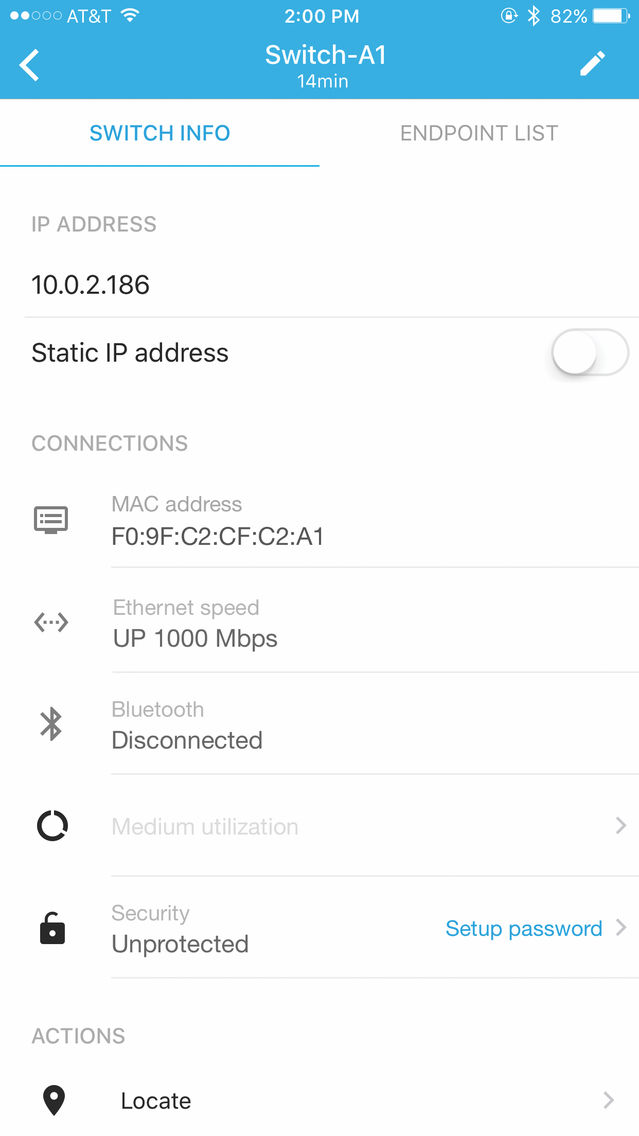
2. Switch Info will appear, displaying the Switch details.
3. Tap the EndPoint List tab, and then in "Found new endpoint devices" group, tap the EndPoint you
would like to pair with the Switch.
4. Then App started the Bluetooth connection process with the selected EtherMagic Endpoint. Once successful, the detailed functionalities for Endpoint will be shown.
5. Tap "Pair with Switch". Ensure that the selected EtherMagic Endpoint was not paired with any Switches before pairing. Note, if NOT sure, you can tap "Reset to default" to make a clean device and repeat steps 3 to 5.
6. Upon successful physical pairing, the Link Quality of the connection will be displayed.

- Pair the EtherMagic EndPoints with Switch to create a network. Note: The EtherMagic System bundle (EM-KIT) is Plug and Play ready with each EndPoint already pre-paired with the included Switch.
- Provision management functionality for EtherMagic Switch and Endpoints, and also provides device and network statistics.
Requirement:
Ensure the Switch and Wi-Fi of your iOS device are connected to the same LAN, and Bluetooth is on.
How To Pair:
1. Launch the EtherMagic app. A list of Switches will appear. Tap the Switch you would like to pair.
2. Switch Info will appear, displaying the Switch details.
3. Tap the EndPoint List tab, and then in "Found new endpoint devices" group, tap the EndPoint you
would like to pair with the Switch.
4. Then App started the Bluetooth connection process with the selected EtherMagic Endpoint. Once successful, the detailed functionalities for Endpoint will be shown.
5. Tap "Pair with Switch". Ensure that the selected EtherMagic Endpoint was not paired with any Switches before pairing. Note, if NOT sure, you can tap "Reset to default" to make a clean device and repeat steps 3 to 5.
6. Upon successful physical pairing, the Link Quality of the connection will be displayed.
Show More
최신 버전 1.37.9의 새로운 기능
Last updated on Aug 2, 2017
오래된 버전
~Heightened security support
~General bug fixes
~General bug fixes
Show More
Version History
1.37.9
Aug 2, 2017
~Heightened security support
~General bug fixes
~General bug fixes
1.37.6
Jul 25, 2017
Updating process improvements
Device detection improvements
iOS 9 Bug fixes
Device detection improvements
iOS 9 Bug fixes
1.37.1
Jul 18, 2017
New in this version
Refinement to update process
Minor bug fixes
Refinement to update process
Minor bug fixes
1.0
Jul 16, 2017
EtherMagic FAQ
제한된 국가 또는 지역에서 EtherMagic를 다운로드하는 방법을 알아보려면 여기를 클릭하십시오.
EtherMagic의 최소 요구 사항을 보려면 다음 목록을 확인하십시오.
iPhone
iPad
EtherMagic은 다음 언어를 지원합니다. English