The Presentation Master.
Remote control, timer & notes.
Free
2.2.0for iPhone, iPad and more
Age Rating
The Presentation Master. Screenshots
About The Presentation Master.
READ THE "HOW IT WORKS" SECTION FOR SETUP INSTRUCTIONS.
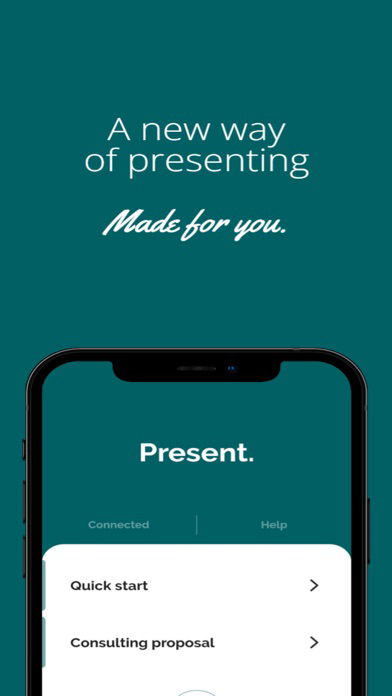
Remote control, speaker notes and a vibrating timer to help you with your PowerPoint presentations.
This app turns your phone into a remote controller for your PowerPoint or Google Slides presentation. By tapping on your screen or pressing the volume buttons you can navigate your presentation on your PC after you have downloaded the Windows app on it. You can also view notes or control media on your PC.
How it works:
1. Download this app.
2. Open tavy-ai.web.app on your Windows PC and download the Windows app. You may have to configure your antivirus for this due to false positive alarms.
3. Open both apps. Make sure they are connected to the same WLAN.
4. Tap the "Connect" button on the mobile start page. Your devices should now be connected. IF YOU HAVE NO WINDOWS DEVICE RUNNING THE WINDOWS APP IN THE SAME WLAN, IT WON'T HAPPEN ANYTHING, so please make sure you do. If it still doesn't work, go to the WiFi settings of your PC and set the "Network profile type" to "Private Network".
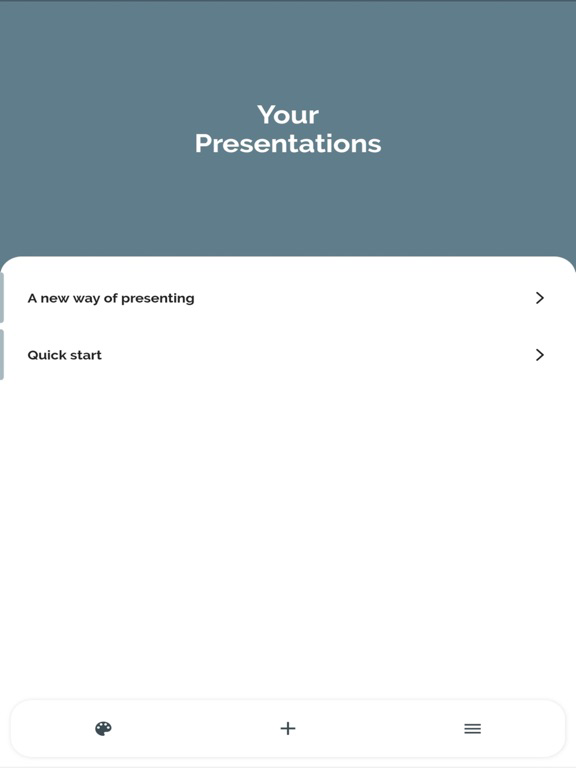
5. Create a presentation in the mobile app with the "+"-button. Click on it, add speaker notes and press the button at the bottom of the notes page to start presenting.
6. Always keep both apps up to date to use them together!
Happy presenting!
Contact: tavyai.apps@gmail.com
Imprint: https://tavy-ai.web.app/presentation-master/imprint

Remote control, speaker notes and a vibrating timer to help you with your PowerPoint presentations.
This app turns your phone into a remote controller for your PowerPoint or Google Slides presentation. By tapping on your screen or pressing the volume buttons you can navigate your presentation on your PC after you have downloaded the Windows app on it. You can also view notes or control media on your PC.
How it works:
1. Download this app.
2. Open tavy-ai.web.app on your Windows PC and download the Windows app. You may have to configure your antivirus for this due to false positive alarms.
3. Open both apps. Make sure they are connected to the same WLAN.
4. Tap the "Connect" button on the mobile start page. Your devices should now be connected. IF YOU HAVE NO WINDOWS DEVICE RUNNING THE WINDOWS APP IN THE SAME WLAN, IT WON'T HAPPEN ANYTHING, so please make sure you do. If it still doesn't work, go to the WiFi settings of your PC and set the "Network profile type" to "Private Network".
5. Create a presentation in the mobile app with the "+"-button. Click on it, add speaker notes and press the button at the bottom of the notes page to start presenting.
6. Always keep both apps up to date to use them together!
Happy presenting!
Contact: tavyai.apps@gmail.com
Imprint: https://tavy-ai.web.app/presentation-master/imprint
Show More
What's New in the Latest Version 2.2.0
Last updated on Feb 5, 2023
Old Versions
Complete redesign.
Show More
Version History
2.2.0
Feb 5, 2023
Complete redesign.
2.0.1
Aug 28, 2022
(Hopefully) fixed the critical bug where new users could not add projects.
2.0.0
Aug 25, 2022
Complete redesign. Functionality remains mostly the same.
1.4.0
May 28, 2022
Perfection.
1.3.10
May 26, 2022
Should work perfectly now.
1.3.9
May 23, 2022
Bug fixes. It should work now.
1.3.8
May 17, 2022
- Easier setup
- Easier adding of notes
- Bug fixes
- Minor design changes
- Easier adding of notes
- Bug fixes
- Minor design changes
1.3.7
May 15, 2022
The Presentation Master. FAQ
Click here to learn how to download The Presentation Master. in restricted country or region.
Check the following list to see the minimum requirements of The Presentation Master..
iPhone
Requires iOS 11.0 or later.
iPad
Requires iPadOS 11.0 or later.
iPod touch
Requires iOS 11.0 or later.
The Presentation Master. supports English