Epson Setting Assistant
Gratis
2.1.1for iPhone, iPad
Age Rating
Epson Setting Assistant Screenshots
About Epson Setting Assistant
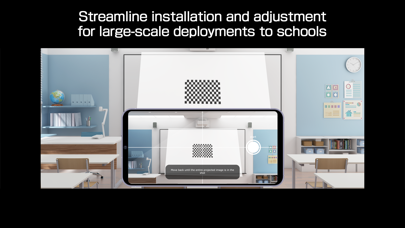
Epson Setting Assistant is an app that automatically corrects the shape of a projected image by using your camera.
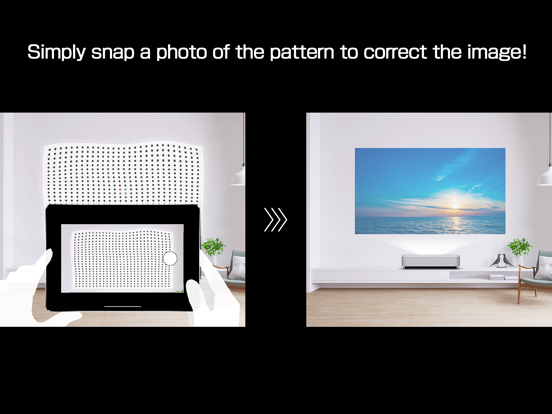
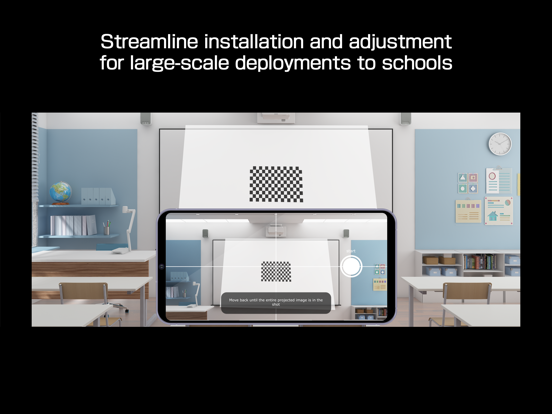
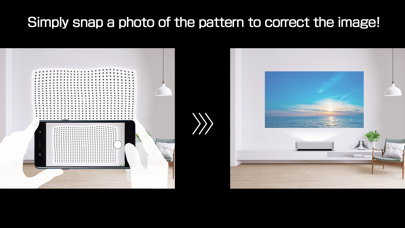
By taking a shot of the projected pattern, the app automatically corrects distortion in the projected image and adjusts its shape to match the screen.
[Main Features]
1) Shape correction
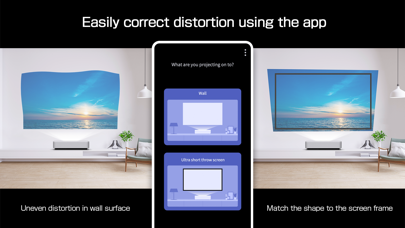
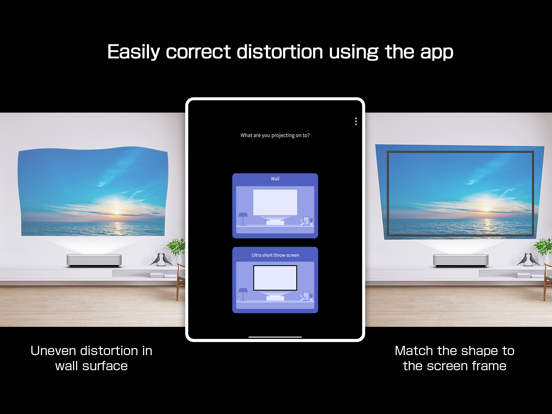
The app adjusts the image to a rectangular shape or aligns it with a frame, such as a projector screen.
2) Unevenness correction
The app detects small surface irregularities, such as on a wall, and corrects distortion in the projected image.
[For Home Projector (EH Series) Users: Using the App]
Make sure your iPhone®, iPad®, or iPod® touch and the projector are connected to the same network.
1. Select [Installation] ([Installation] > [Geometry Correction Wizard]) from the projector's menu.
2. Open this app on your iPhone®, iPad®, or iPod® touch and select [Home] as the projector type to automatically connect to the projector.
3. Follow the on-screen instructions to take a shot of the projected pattern using the camera in the app, and the corrections will be completed automatically.
[For Business Projector (EB Series) Users: Using the App]
Make sure the [Wireless LAN Power] setting is set to [On] in the projector‘s [Management] menu.
1. Select [Installation] > [Connect to Setting Assistant] from the projector's menu to project a QR code.
2. Open this app on your iPhone®, iPad®, or iPod® touch, select [Business] as the projector's type, and then scan the QR code to automatically connect to the projector.
3. Follow the on-screen instructions to take a shot of the projected pattern using the camera in the app, and the corrections will be completed automatically.
[Supported Projectors]
Visit https://support.epson.net/projector_appinfo/setting_assistant/en/ for details.
Depending on your projector model, some features may not be available.
[Notes for use]
Depending on your environment, such as a curved projection surface or wallpaper with rough textures or patterns, automatic correction using the app may not be available. In these situations, please correct the image shape from the projector's menu.
Depending on your smartphone/tablet, the Wi-Fi settings may prevent you from temporarily connecting to the projector. Turn your Wi-Fi off and then on again and try again.
For detailed important points, visit https://download2.ebz.epson.net/sec_pubs_visual/apps/setting_assistant/210/EN/index.html.
You can also check these from the [Online support guide] in the menu at the top right of the app.
Images used here are for illustrative purposes only. The actual images may differ.
[App Permissions]
To use the app, the following permissions are required.
[Required] Local Network
For searching and connecting to the projector.
[Required] Camera
For capturing correction patterns or QR codes for connection.
* Optional permissions can be declined, but some features may not work.

By taking a shot of the projected pattern, the app automatically corrects distortion in the projected image and adjusts its shape to match the screen.
[Main Features]
1) Shape correction
The app adjusts the image to a rectangular shape or aligns it with a frame, such as a projector screen.
2) Unevenness correction
The app detects small surface irregularities, such as on a wall, and corrects distortion in the projected image.
[For Home Projector (EH Series) Users: Using the App]
Make sure your iPhone®, iPad®, or iPod® touch and the projector are connected to the same network.
1. Select [Installation] ([Installation] > [Geometry Correction Wizard]) from the projector's menu.
2. Open this app on your iPhone®, iPad®, or iPod® touch and select [Home] as the projector type to automatically connect to the projector.
3. Follow the on-screen instructions to take a shot of the projected pattern using the camera in the app, and the corrections will be completed automatically.
[For Business Projector (EB Series) Users: Using the App]
Make sure the [Wireless LAN Power] setting is set to [On] in the projector‘s [Management] menu.
1. Select [Installation] > [Connect to Setting Assistant] from the projector's menu to project a QR code.
2. Open this app on your iPhone®, iPad®, or iPod® touch, select [Business] as the projector's type, and then scan the QR code to automatically connect to the projector.
3. Follow the on-screen instructions to take a shot of the projected pattern using the camera in the app, and the corrections will be completed automatically.
[Supported Projectors]
Visit https://support.epson.net/projector_appinfo/setting_assistant/en/ for details.
Depending on your projector model, some features may not be available.
[Notes for use]
Depending on your environment, such as a curved projection surface or wallpaper with rough textures or patterns, automatic correction using the app may not be available. In these situations, please correct the image shape from the projector's menu.
Depending on your smartphone/tablet, the Wi-Fi settings may prevent you from temporarily connecting to the projector. Turn your Wi-Fi off and then on again and try again.
For detailed important points, visit https://download2.ebz.epson.net/sec_pubs_visual/apps/setting_assistant/210/EN/index.html.
You can also check these from the [Online support guide] in the menu at the top right of the app.
Images used here are for illustrative purposes only. The actual images may differ.
[App Permissions]
To use the app, the following permissions are required.
[Required] Local Network
For searching and connecting to the projector.
[Required] Camera
For capturing correction patterns or QR codes for connection.
* Optional permissions can be declined, but some features may not work.
Show More
Was ist neu in der neuesten Version 2.1.1
Last updated on Oct 31, 2025
Alte Versionen
Minor bug fixes
Show More
Version History
2.1.1
Oct 31, 2025
Minor bug fixes
Epson Setting Assistant FAQ
Epson Setting Assistant ist in anderen Regionen außerhalb der folgenden eingeschränkten Ländern verfügbar:
Chad,Swaziland,Afghanistan,Moldova,Sierra Leone,Lebanon,Mozambique,Georgia,Lao Peoples Democratic Republic,Rwanda,Iraq,Turkmenistan,Gabon,Myanmar,Niger,Congo, Democratic Republic,Mauritania,Benin,Burkina Faso,Tajikistan,Cote Divoire,Seychelles,Guinea-bissau,Liberia,Senegal,Congo,Gambia,Madagascar,Uzbekistan,Yemen,Libya,Malawi,Mali,Azerbaijan
Überprüfen Sie die folgende Liste, um die Mindestanforderungen von Epson Setting Assistant zu sehen.
iPhone
iPad
Klicken Sie hier, um zu erfahren, wie Sie Epson Setting Assistant in eingeschränkten Ländern oder Regionen herunterladen können.