Bitte
무료
2.1.2for iPhone, iPad
Age Rating
Bitte 스크린 샷
About Bitte
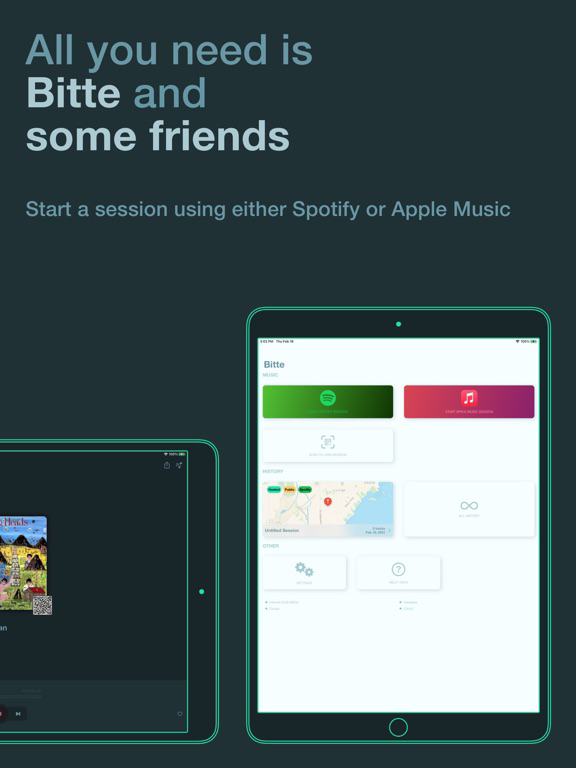
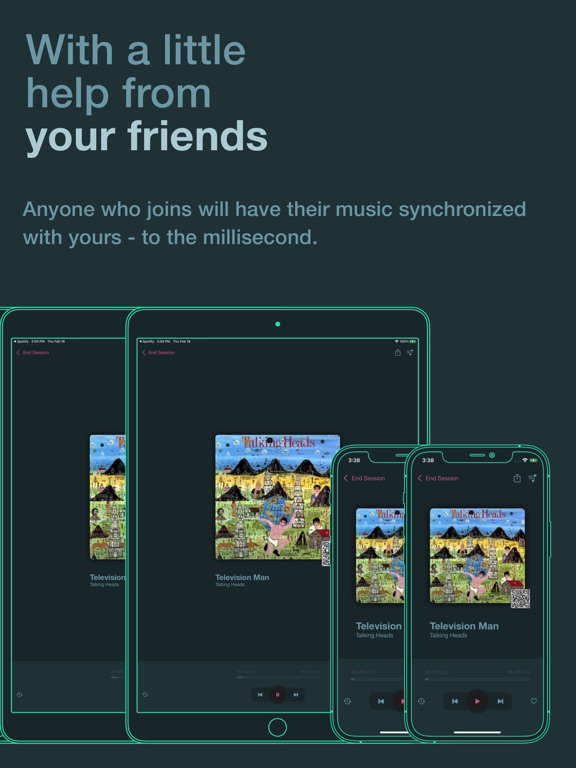
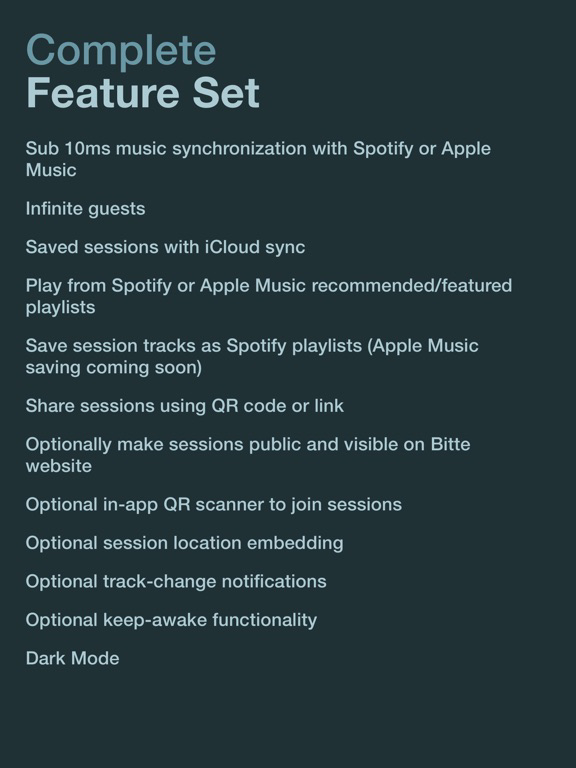
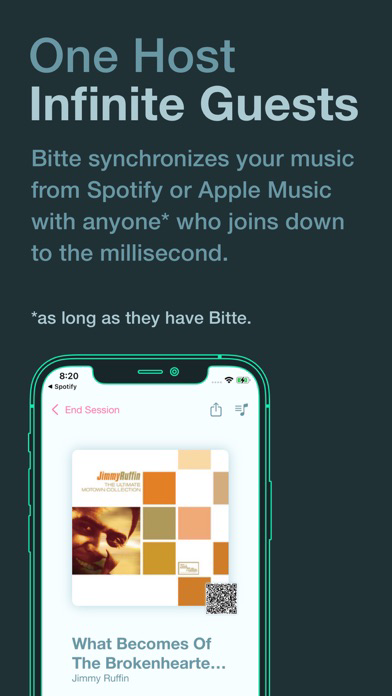
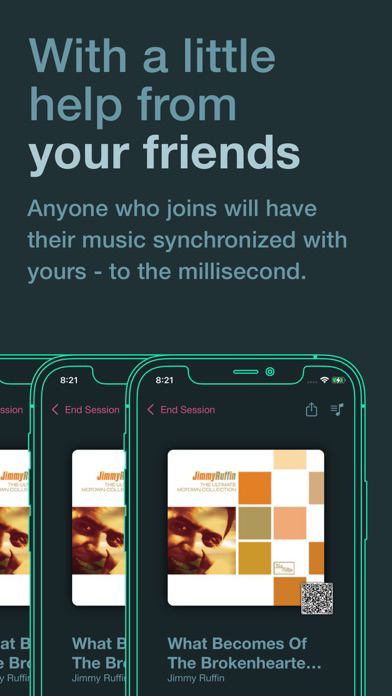
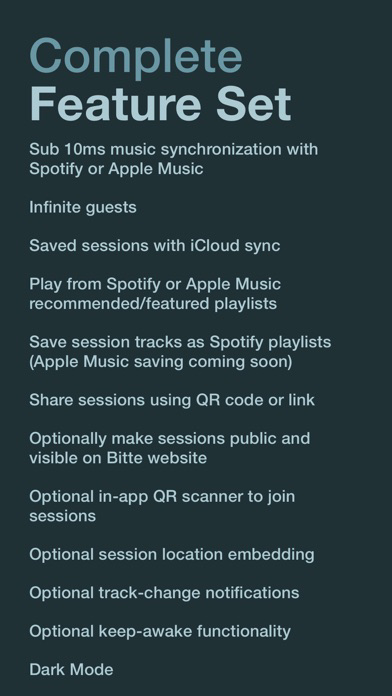
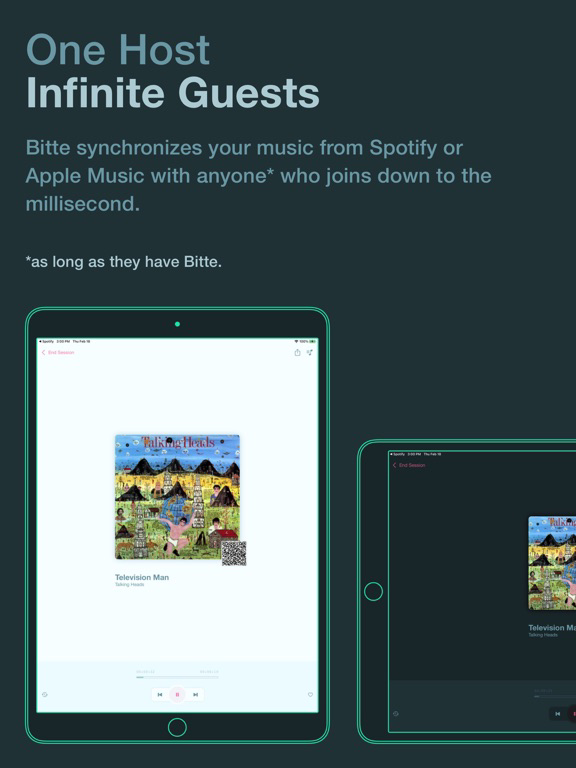
Bitte lets you start a session using Spotify or Apple Music and anybody who joins will have their music synchronized with yours to the millisecond.
Make noise even if you forgot your bluetooth speaker. All you need is Bitte, Spotify and some friends!
In App Purchases:
Host Mode: Allows you to be the host and host a session. Joining is free.
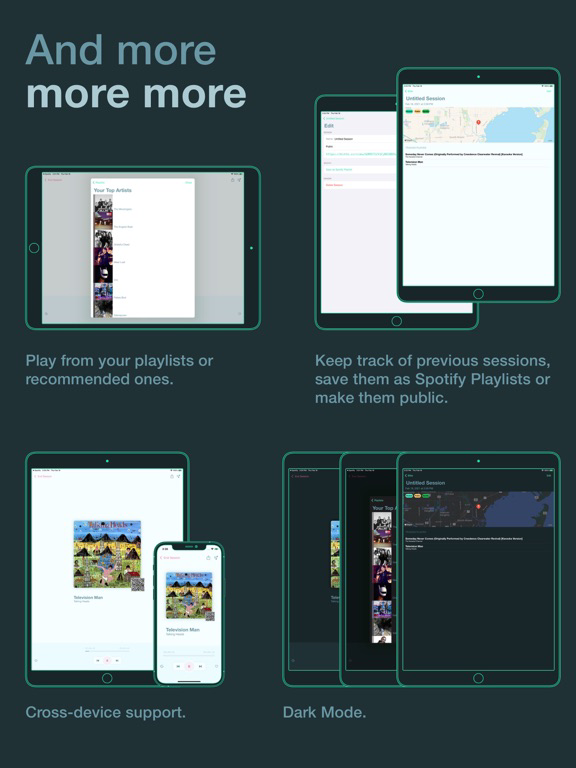
Unlimited History: Allows you to keep an infinite record of sessions. Without this you are limited to your latest 3 sessions.
Tips:
* Internet: A good, fast internet connection makes for the best experience
* Spotify Plans: A free Spotify account can not play any given track. This will most likely impede your ability to stay in sync if the host has a Premium account.
* Foreground: Bitte needs to be in the foreground to work! Bitte offers two ways to make this easier: 1) Keep Alive: in the settings you can choose to keep your phone up and running while Bitte is active. This is the best way but also the worst for your battery. 2) Notifications: If you allow notifications and enable them Bitte will send you a notification 15 seconds before the track is about to end so that you can bring Bitte to the foreground and keep the music in sync.
* Spotify Connectivity / General Synchronization: sometimes the connection from Bitte to Spotify doesn't work quite right - don't worry though your session should still be active. If you are having trouble getting the connection to work correctly try to bring Spotify to the foreground for a few seconds, then Bitte again. If you feel like the music is not perfectly synchronized, both the host and guest can tap the "Resync" buttons. If all else fails: Pause and unpause the current track.
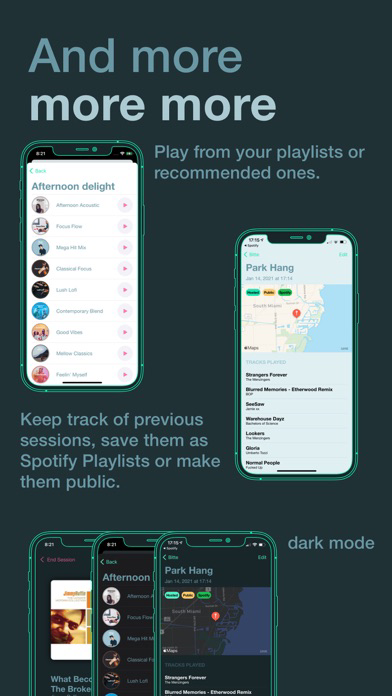
* Public Sessions: All new sessions are PRIVATE BY DEFAULT. You can choose to make all new sessions public from the settings menu or make an individual session public from the session details page. Public sessions will be displayed on the bitte.cc website.
Starting a session:
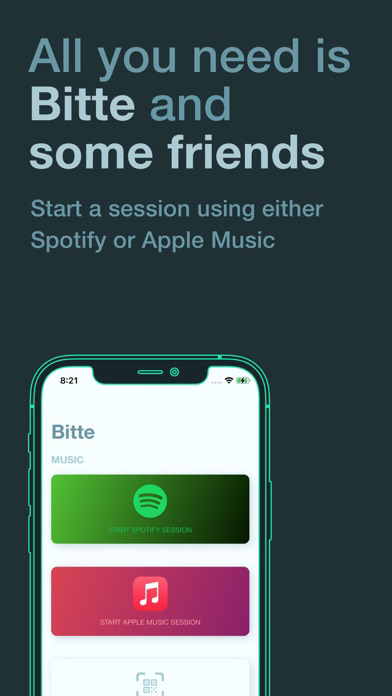
To start a session you need to get Host Mode. Host Mode is a one-time in app purchase. Once you have Host Mode simply tap the Spotify icon. Spotify will ask you to grant access to Bitte (this is required so that Bitte can read and control your Spotify music). A session will be created and music will start playing.
Joining a session:
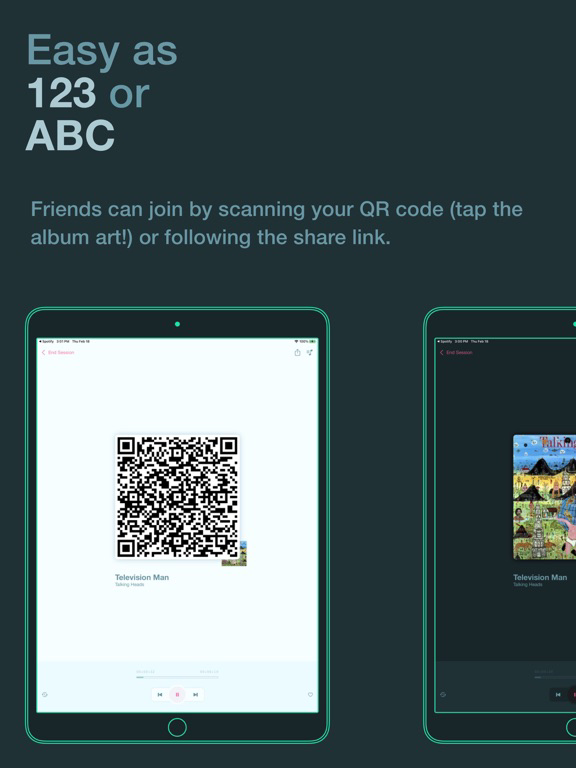
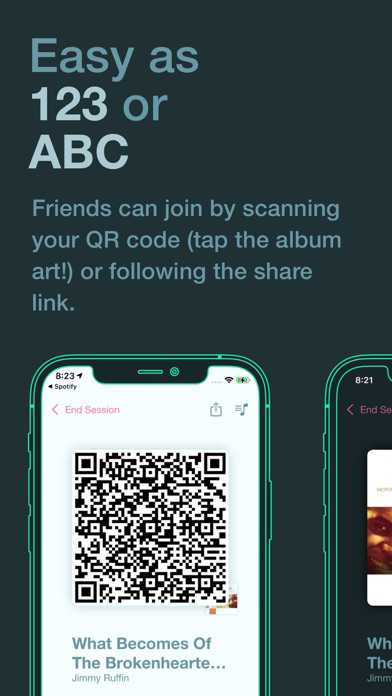
Tap the camera icon from the main Bitte screen and point it at the hosts (or any other active guests) QR code (tap the album art!).
Alternatively you can also join a session by receiving a link for an active session.
Camera, Location, Notifications, Privacy:
Camera (OPTIONAL): Permission required only to scan QR codes. You can always scan a code using the iOS native camera app.
Location (OPTIONAL): Permission required only if you want to record the location of the session to later view in your history. All sessions are private by default but you can choose to make them public. If public, they will be displayed on the bitte.cc website.
Notifications (OPTIONAL): Notifications are required only if you wish to receive notifications when a track is about to end. Since Bitte needs to be active and in the foreground to work, these notifications can let you know when a track is about to change so you can open Bitte and make sure the music keeps playing in sync.

Make noise even if you forgot your bluetooth speaker. All you need is Bitte, Spotify and some friends!
In App Purchases:
Host Mode: Allows you to be the host and host a session. Joining is free.
Unlimited History: Allows you to keep an infinite record of sessions. Without this you are limited to your latest 3 sessions.
Tips:
* Internet: A good, fast internet connection makes for the best experience
* Spotify Plans: A free Spotify account can not play any given track. This will most likely impede your ability to stay in sync if the host has a Premium account.
* Foreground: Bitte needs to be in the foreground to work! Bitte offers two ways to make this easier: 1) Keep Alive: in the settings you can choose to keep your phone up and running while Bitte is active. This is the best way but also the worst for your battery. 2) Notifications: If you allow notifications and enable them Bitte will send you a notification 15 seconds before the track is about to end so that you can bring Bitte to the foreground and keep the music in sync.
* Spotify Connectivity / General Synchronization: sometimes the connection from Bitte to Spotify doesn't work quite right - don't worry though your session should still be active. If you are having trouble getting the connection to work correctly try to bring Spotify to the foreground for a few seconds, then Bitte again. If you feel like the music is not perfectly synchronized, both the host and guest can tap the "Resync" buttons. If all else fails: Pause and unpause the current track.
* Public Sessions: All new sessions are PRIVATE BY DEFAULT. You can choose to make all new sessions public from the settings menu or make an individual session public from the session details page. Public sessions will be displayed on the bitte.cc website.
Starting a session:
To start a session you need to get Host Mode. Host Mode is a one-time in app purchase. Once you have Host Mode simply tap the Spotify icon. Spotify will ask you to grant access to Bitte (this is required so that Bitte can read and control your Spotify music). A session will be created and music will start playing.
Joining a session:
Tap the camera icon from the main Bitte screen and point it at the hosts (or any other active guests) QR code (tap the album art!).
Alternatively you can also join a session by receiving a link for an active session.
Camera, Location, Notifications, Privacy:
Camera (OPTIONAL): Permission required only to scan QR codes. You can always scan a code using the iOS native camera app.
Location (OPTIONAL): Permission required only if you want to record the location of the session to later view in your history. All sessions are private by default but you can choose to make them public. If public, they will be displayed on the bitte.cc website.
Notifications (OPTIONAL): Notifications are required only if you wish to receive notifications when a track is about to end. Since Bitte needs to be active and in the foreground to work, these notifications can let you know when a track is about to change so you can open Bitte and make sure the music keeps playing in sync.
Show More
최신 버전 2.1.2의 새로운 기능
Last updated on Feb 23, 2021
오래된 버전
- iPad Support!
- Internet connection and other status indicators
Show More
Version History
2.1.2
Feb 23, 2021
- iPad Support!
- Internet connection and other status indicators
Bitte FAQ
제한된 국가 또는 지역에서 Bitte를 다운로드하는 방법을 알아보려면 여기를 클릭하십시오.
Bitte의 최소 요구 사항을 보려면 다음 목록을 확인하십시오.
iPhone
iPad