Proctormatic
Free
1.2.3for iPhone
Age Rating
Proctormatic Screenshots
About Proctormatic
[How to use]
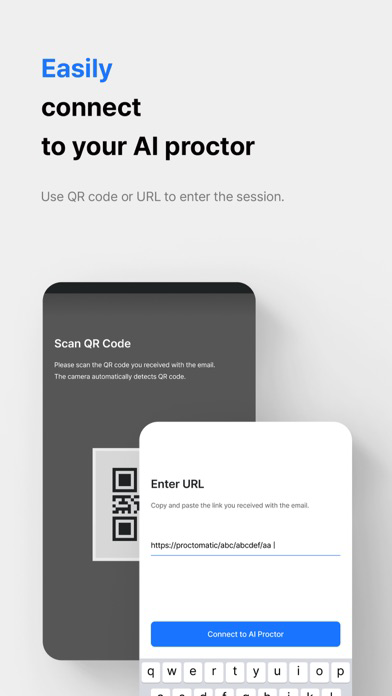
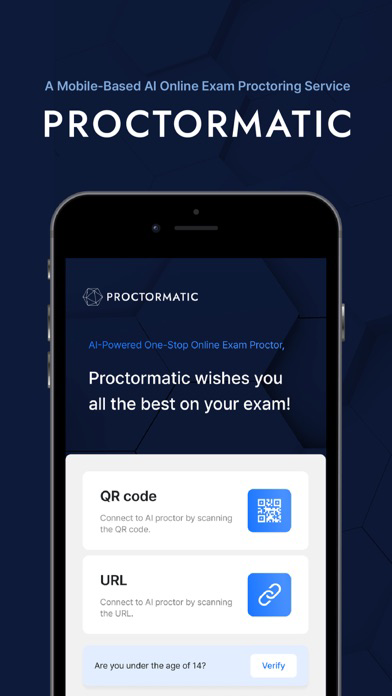
1. Enter the QR or URL code provided by the administrator in the email.
2. Confirm exam and test-taker details and agree to the terms and conditions.
a. Check exam details.
b. Enter the test-taker's information.
c. Agree to the terms and conditions.
3. Follow the instructions to continue with the setup process.
a. Verify identification.
b. Check device status.
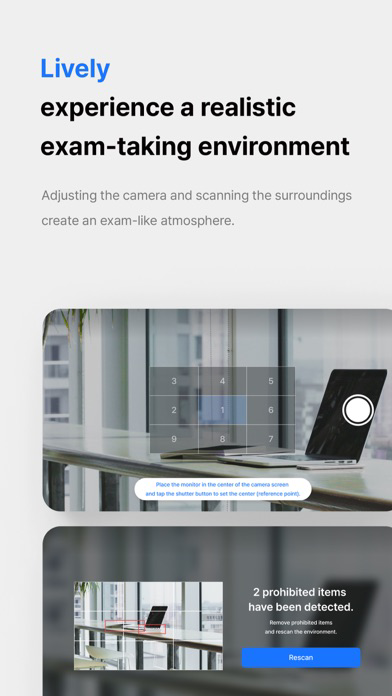
c. Scan surrounding environment.
d. Adjust the smartphone camera.
4. Enter the session and record a video of yourself taking the exam. The video recording will automatically stop at the end of the exam.
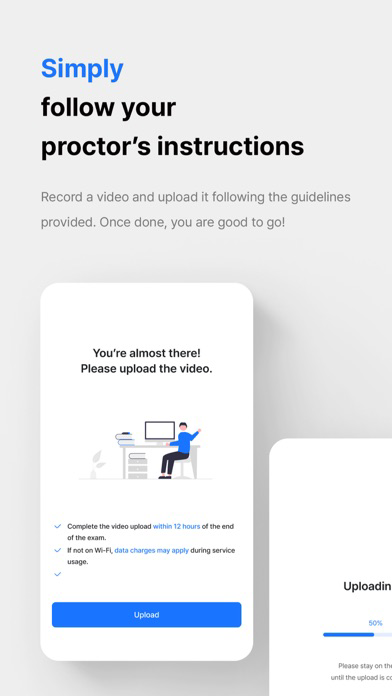
5. Submit the recorded video. It will be verified by an AI proctor.
[Please note]
∙ Prepare a phone stand (or tripod) for video recording.
∙ Individuals under the age of 14 require consent from a legal representative.
∙ Connect the charger, make sure you have over 4GB of storage, and switch to silent mode.
∙ Receiving notifications while recording a video may disrupt the app. Turn off app notifications, such as phone calls and text messages, during the exam to avoid disruptions to video recording.
∙ To prevent potential interruptions, please turn off emergency alerts.
∙ To avoid interruptions from calls or texts, use the 'Do Not Disturb' mode.
∙ You can join sessions 30 minutes before and 15 minutes after the exam starts.
∙ Your face, hands, and monitor should always be visible.
∙ Proctormatic uses your email as an ID. If the app closes during video recording or uploading, log in again with the same email address.
∙ Reconnecting, including rescanning the environment and readjusting the camera, may take extra time.
∙ Upload the recorded video 12 hours after the exam ends.
∙ Leaving the page during the video upload may result in errors, so ensure the upload is complete.
[App Permissions]
Proctormatic needs access to:
∙ Camera: To record the exam, identification, and environment scans.
∙ Microphone: To record the exam.
∙ Location: To record your location.
[System Requirements]
∙ Version
◦ iOS : 13.0 or later
∙ Supported Devices: All models released after 2019 (Tablets not supported)
∙ RAM
◦ Minimum: 2GB
◦ Recommended: 4GB

1. Enter the QR or URL code provided by the administrator in the email.
2. Confirm exam and test-taker details and agree to the terms and conditions.
a. Check exam details.
b. Enter the test-taker's information.
c. Agree to the terms and conditions.
3. Follow the instructions to continue with the setup process.
a. Verify identification.
b. Check device status.
c. Scan surrounding environment.
d. Adjust the smartphone camera.
4. Enter the session and record a video of yourself taking the exam. The video recording will automatically stop at the end of the exam.
5. Submit the recorded video. It will be verified by an AI proctor.
[Please note]
∙ Prepare a phone stand (or tripod) for video recording.
∙ Individuals under the age of 14 require consent from a legal representative.
∙ Connect the charger, make sure you have over 4GB of storage, and switch to silent mode.
∙ Receiving notifications while recording a video may disrupt the app. Turn off app notifications, such as phone calls and text messages, during the exam to avoid disruptions to video recording.
∙ To prevent potential interruptions, please turn off emergency alerts.
∙ To avoid interruptions from calls or texts, use the 'Do Not Disturb' mode.
∙ You can join sessions 30 minutes before and 15 minutes after the exam starts.
∙ Your face, hands, and monitor should always be visible.
∙ Proctormatic uses your email as an ID. If the app closes during video recording or uploading, log in again with the same email address.
∙ Reconnecting, including rescanning the environment and readjusting the camera, may take extra time.
∙ Upload the recorded video 12 hours after the exam ends.
∙ Leaving the page during the video upload may result in errors, so ensure the upload is complete.
[App Permissions]
Proctormatic needs access to:
∙ Camera: To record the exam, identification, and environment scans.
∙ Microphone: To record the exam.
∙ Location: To record your location.
[System Requirements]
∙ Version
◦ iOS : 13.0 or later
∙ Supported Devices: All models released after 2019 (Tablets not supported)
∙ RAM
◦ Minimum: 2GB
◦ Recommended: 4GB
Show More
What's New in the Latest Version 1.2.3
Last updated on Nov 29, 2025
Old Versions
[1.2.3]
- 녹화, 업로드 안정성 확보를 위한 업데이트
Show More
Version History
1.2.3
Nov 29, 2025
[1.2.3]
- 녹화, 업로드 안정성 확보를 위한 업데이트
Proctormatic FAQ
Click here to learn how to download Proctormatic in restricted country or region.
Check the following list to see the minimum requirements of Proctormatic.
iPhone