ImageCapture
無料
2.6for iPhone, iPad
Age Rating
ImageCapture スクリーンショット
About ImageCapture
Capture your product photograph from Alpha Software using Your Mobile
Steps:
If you are using Alpha JSoft Software
Step1 : Open Jsoft in your computer
Step2 : Open Tag Generate
Step3 : Image Capture Desktop application automatically start in your computer
Step4 : Open Image Capture iPhone app in your mobile
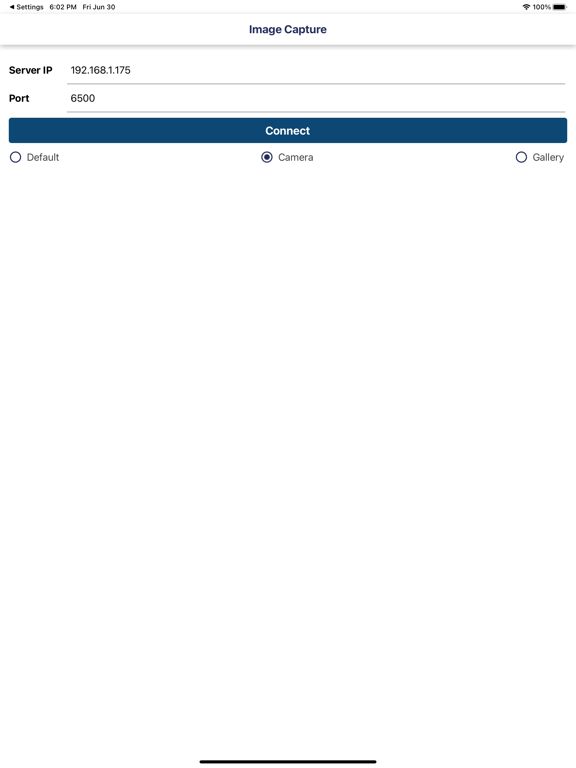
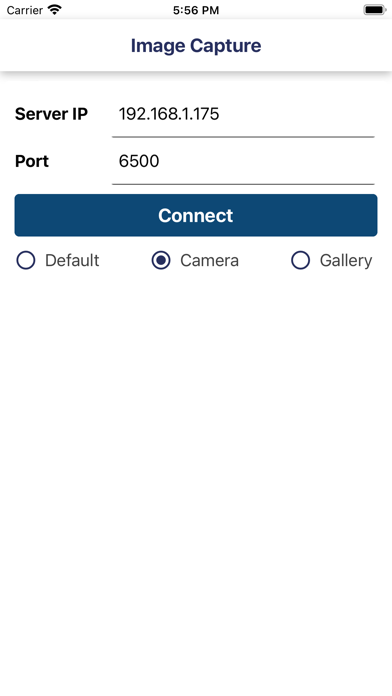
Step5 : Enter your computer IP Addres and port default is (6500) (Make sure your computer and mobile must be in same wifi network)
Step6 : Now your mobile and software in connected
Step7 : Select any tag number for example "RG001" and click on Photo Capture in JSoft
Step8 : Now tag number "RG001" show in your mobile
Step9 : Click on tag number and capture photograph
Step10 : Done.. Check in Jsoft.

Steps:
If you are using Alpha JSoft Software
Step1 : Open Jsoft in your computer
Step2 : Open Tag Generate
Step3 : Image Capture Desktop application automatically start in your computer
Step4 : Open Image Capture iPhone app in your mobile
Step5 : Enter your computer IP Addres and port default is (6500) (Make sure your computer and mobile must be in same wifi network)
Step6 : Now your mobile and software in connected
Step7 : Select any tag number for example "RG001" and click on Photo Capture in JSoft
Step8 : Now tag number "RG001" show in your mobile
Step9 : Click on tag number and capture photograph
Step10 : Done.. Check in Jsoft.

Show More
最新バージョン 2.6 の更新情報
Last updated on 2026年02月01日
旧バージョン
Bug Solve
Show More
Version History
2.6
2026年02月01日
Bug Solve
ImageCapture FAQ
ここをクリック!地理的に制限されているアプリのダウンロード方法をご参考ください。
次のリストをチェックして、ImageCaptureの最低システム要件をご確認ください。
iPhone
iPad