ImageCapture
무료
2.6for iPhone, iPad
Age Rating
ImageCapture 스크린 샷
About ImageCapture
Capture your product photograph from Alpha Software using Your Mobile
Steps:
If you are using Alpha JSoft Software
Step1 : Open Jsoft in your computer
Step2 : Open Tag Generate
Step3 : Image Capture Desktop application automatically start in your computer
Step4 : Open Image Capture iPhone app in your mobile
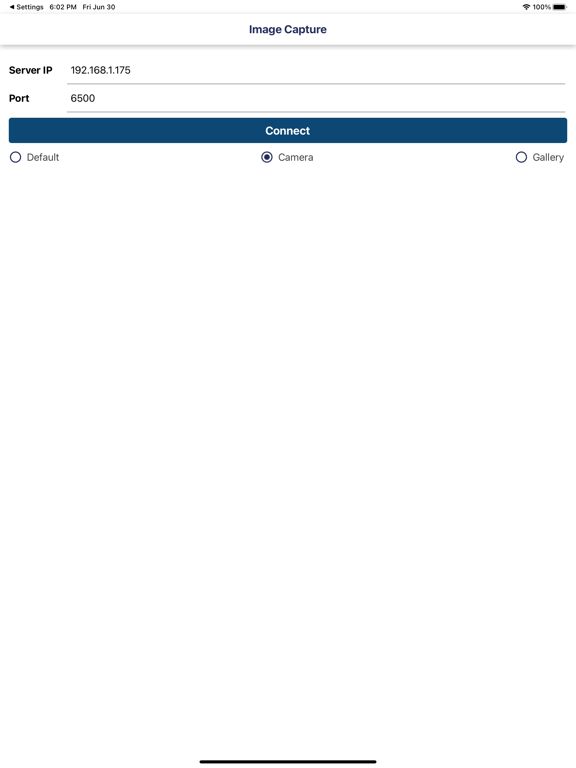
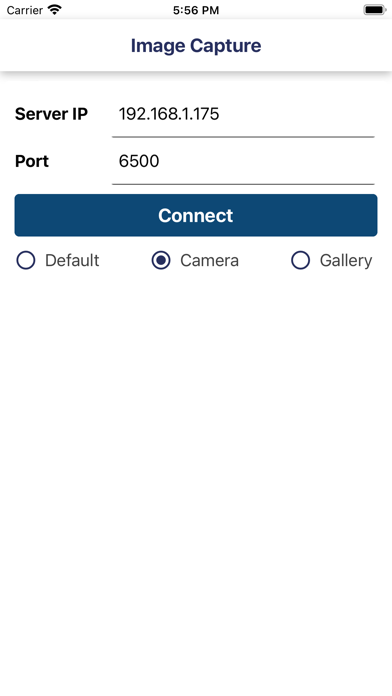
Step5 : Enter your computer IP Addres and port default is (6500) (Make sure your computer and mobile must be in same wifi network)
Step6 : Now your mobile and software in connected
Step7 : Select any tag number for example "RG001" and click on Photo Capture in JSoft
Step8 : Now tag number "RG001" show in your mobile
Step9 : Click on tag number and capture photograph
Step10 : Done.. Check in Jsoft.

Steps:
If you are using Alpha JSoft Software
Step1 : Open Jsoft in your computer
Step2 : Open Tag Generate
Step3 : Image Capture Desktop application automatically start in your computer
Step4 : Open Image Capture iPhone app in your mobile
Step5 : Enter your computer IP Addres and port default is (6500) (Make sure your computer and mobile must be in same wifi network)
Step6 : Now your mobile and software in connected
Step7 : Select any tag number for example "RG001" and click on Photo Capture in JSoft
Step8 : Now tag number "RG001" show in your mobile
Step9 : Click on tag number and capture photograph
Step10 : Done.. Check in Jsoft.

Show More
최신 버전 2.6의 새로운 기능
Last updated on Feb 1, 2026
오래된 버전
Bug Solve
Show More
Version History
2.6
Feb 1, 2026
Bug Solve
ImageCapture FAQ
제한된 국가 또는 지역에서 ImageCapture를 다운로드하는 방법을 알아보려면 여기를 클릭하십시오.
ImageCapture의 최소 요구 사항을 보려면 다음 목록을 확인하십시오.
iPhone
iPad