

Servo Remote
無料
1.24for iPhone, iPod touch
Age Rating
Servo Remote スクリーンショット
About Servo Remote
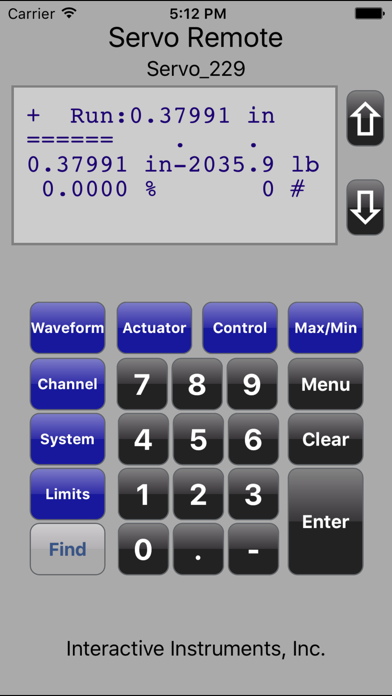
The Servo Remote application can remotely access Interactive Instruments servo creep controllers over a network connection as though the operator is controlling the system manually with the keypad.
As keys are pressed on the iPhone application, commands are directed to the servo controller and the controllers LCD information is fed back to the iPhone application. Both the remote keypad and the servo controller panel keypad can be manipulated at the same time, pressing a key on the control panel will update both the LCD along with any applications monitoring the same servo system on the network.
More than one iPhone application can remotely access and control a single controller at the same time. Pressing the Find button will attempt to identify any servo systems on your local networks subnet. If the system is not on the local subnet, manually enter the IP address and press Select to establish connect. Manual IP connections allow access beyond a local subnet such as over a VPN connection or a separate WiFi subnet. The operator would need to know the physical IP of the servo controller since auto-detection beyond the subnet is not available. Use the standard IP address format with decimal point separators (eg. 192.168.0.100).
For more information about or products, be sure to visit our WEB site at www.interactiveinstruments.com.
As keys are pressed on the iPhone application, commands are directed to the servo controller and the controllers LCD information is fed back to the iPhone application. Both the remote keypad and the servo controller panel keypad can be manipulated at the same time, pressing a key on the control panel will update both the LCD along with any applications monitoring the same servo system on the network.
More than one iPhone application can remotely access and control a single controller at the same time. Pressing the Find button will attempt to identify any servo systems on your local networks subnet. If the system is not on the local subnet, manually enter the IP address and press Select to establish connect. Manual IP connections allow access beyond a local subnet such as over a VPN connection or a separate WiFi subnet. The operator would need to know the physical IP of the servo controller since auto-detection beyond the subnet is not available. Use the standard IP address format with decimal point separators (eg. 192.168.0.100).
For more information about or products, be sure to visit our WEB site at www.interactiveinstruments.com.
Show More
最新バージョン 1.24 の更新情報
Last updated on 2017年02月09日
旧バージョン
Updated for IOS10
Show More
Version History
1.24
2017年02月09日
Updated for IOS10
1.11
2015年09月19日
Servo Remote application was modified to support both character based LCD servo controllers along with new and future graphcal based LCD's. The application will recognize the type of controller selected and automatically switch the display area appropriately. Modifications were also made to support larger iPhone displays and handle newer iOS systems.
1.10
2013年02月27日
- Enhanced keypad for easy access to popular features.
- Ability to change the display refresh rate to suit the network speed.
- iPhone 5 and iOS 6 support
- Ability to change the display refresh rate to suit the network speed.
- iPhone 5 and iOS 6 support
1.01
2012年09月26日
Servo Remote FAQ
ここをクリック!地理的に制限されているアプリのダウンロード方法をご参考ください。
次のリストをチェックして、Servo Remoteの最低システム要件をご確認ください。
iPhone
iOS 10.0以降が必要です。
iPod touch
iOS 10.0以降が必要です。
Servo Remoteは次の言語がサポートされています。 英語


