Teachers help your students become better and more confident readers.
** Children use the power of self correction to improve their own reading skills.
** Add any genre or reading level to Fluency for your children to read.
** Students can zoom in or out of text for their reading comfort.
** Students can very easily submit their best reading to their teacher.
** Excellent for Second Language learners, speech and resource students.
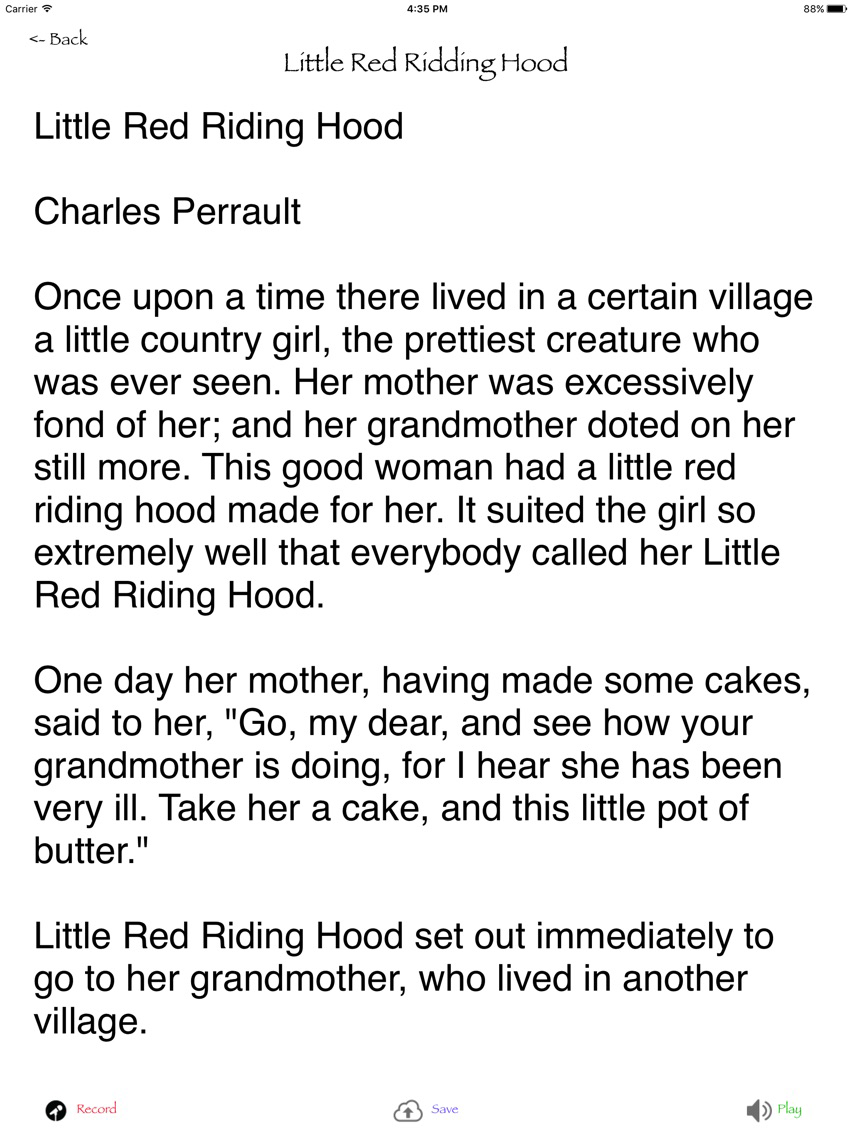
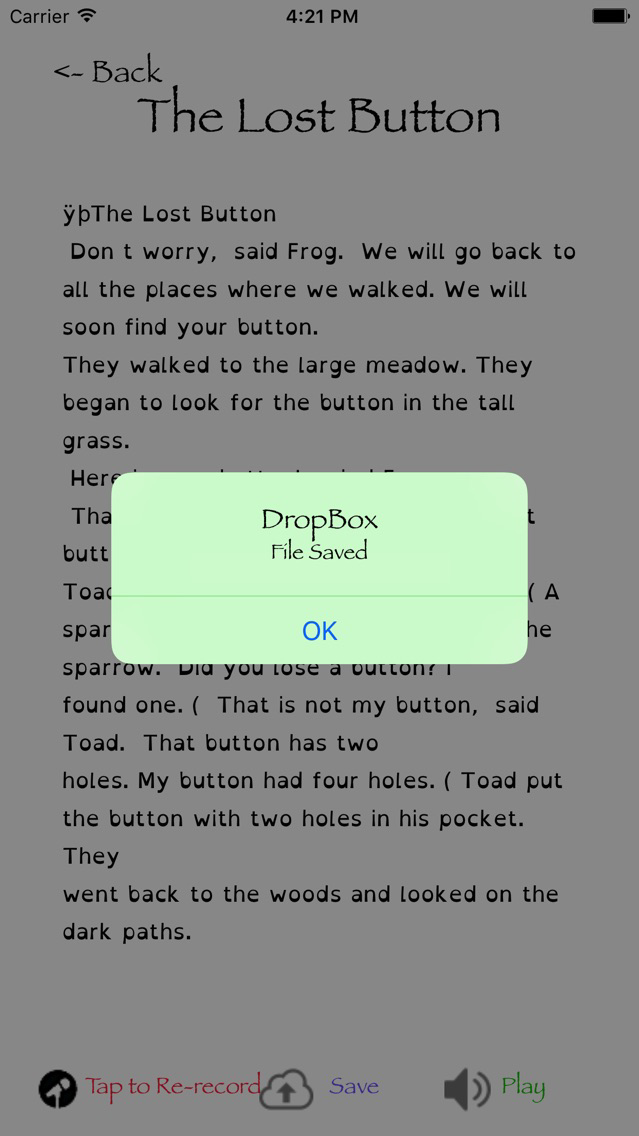
Fluency uses Drop Box to display reading scripts. Children can then record their reading and listen to it record it again or easily send their recording to their teacher.
To use Fluency;
1) Use or create a free Drop Box account. Then install the Drop Box software onto your Mac.
2) Create a folder called "Scripts" in your DropBox folder.
3) Create your own scripts with a word processor to create a plain text file. It must have the extension “.txt” .
4) Save the script to your Drop Box account in your Scripts folder.
5) You will need to enter your Drop Box account information to each device running Fluency.
You will only need to do this once because Drop Box saves the user information token on the device.
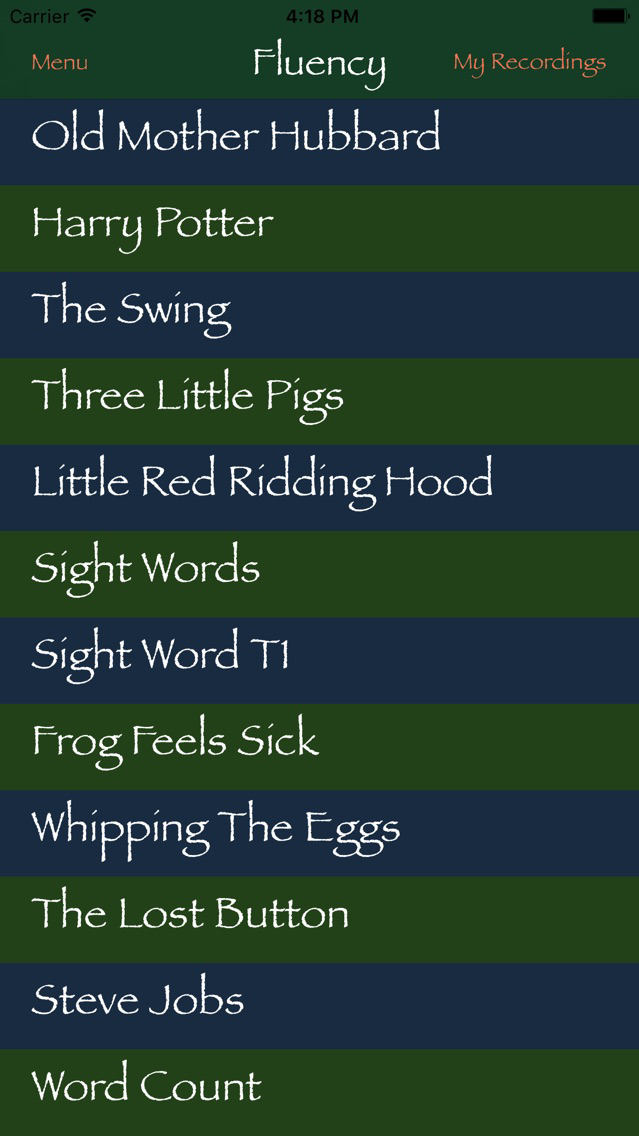
6) Students can then open Fluency and select one of the teacher provided scripts.
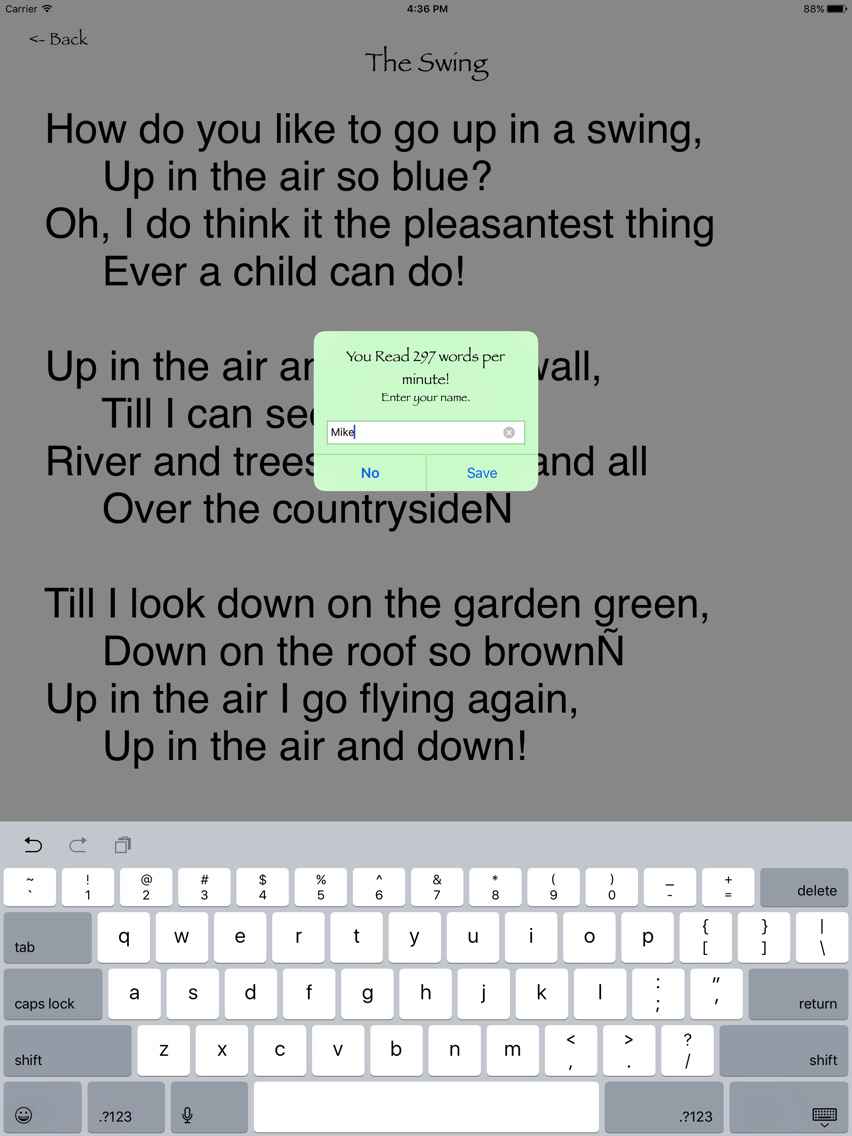
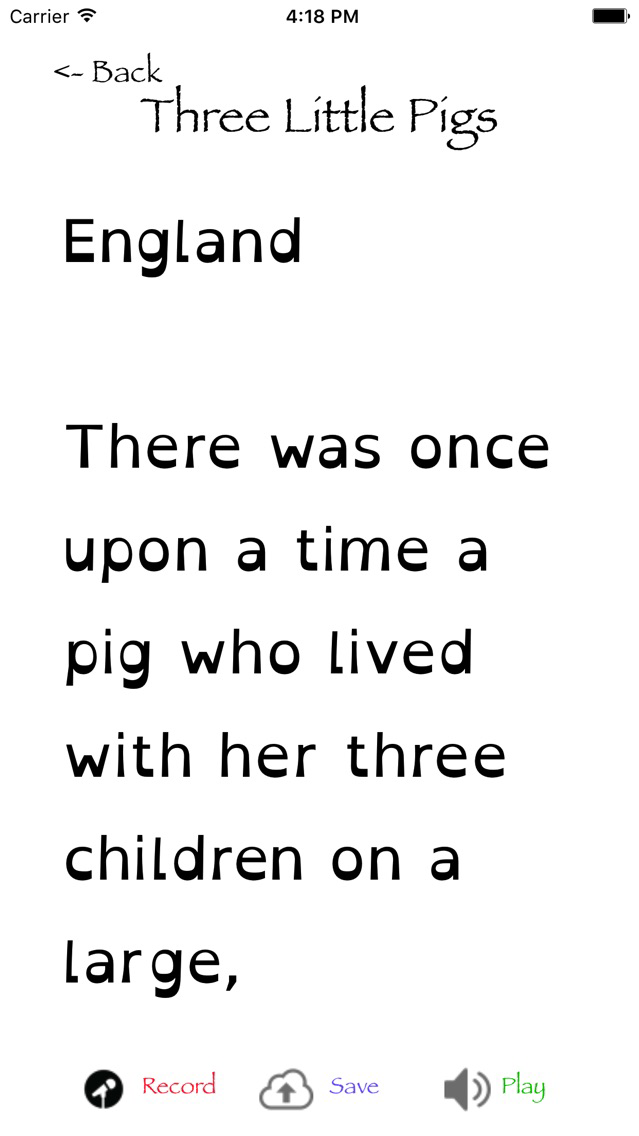
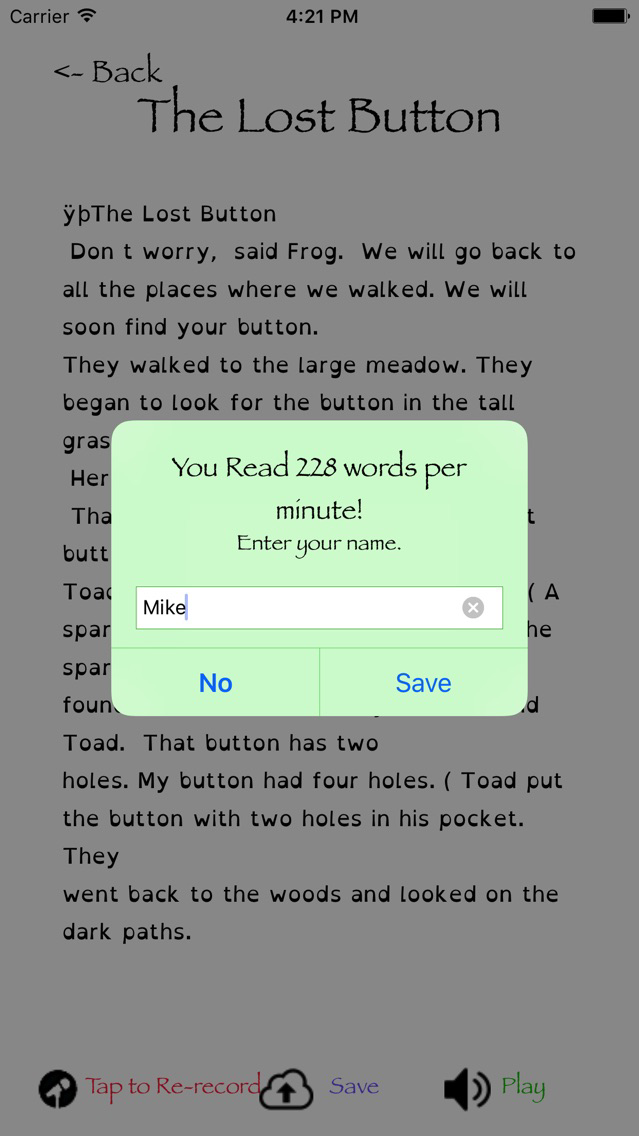
7) Then they must input their name and select a different recording time. Then they press record. When the record light is on, they can start reading. When the pre-determined time has been reached, the app will stop the recording.
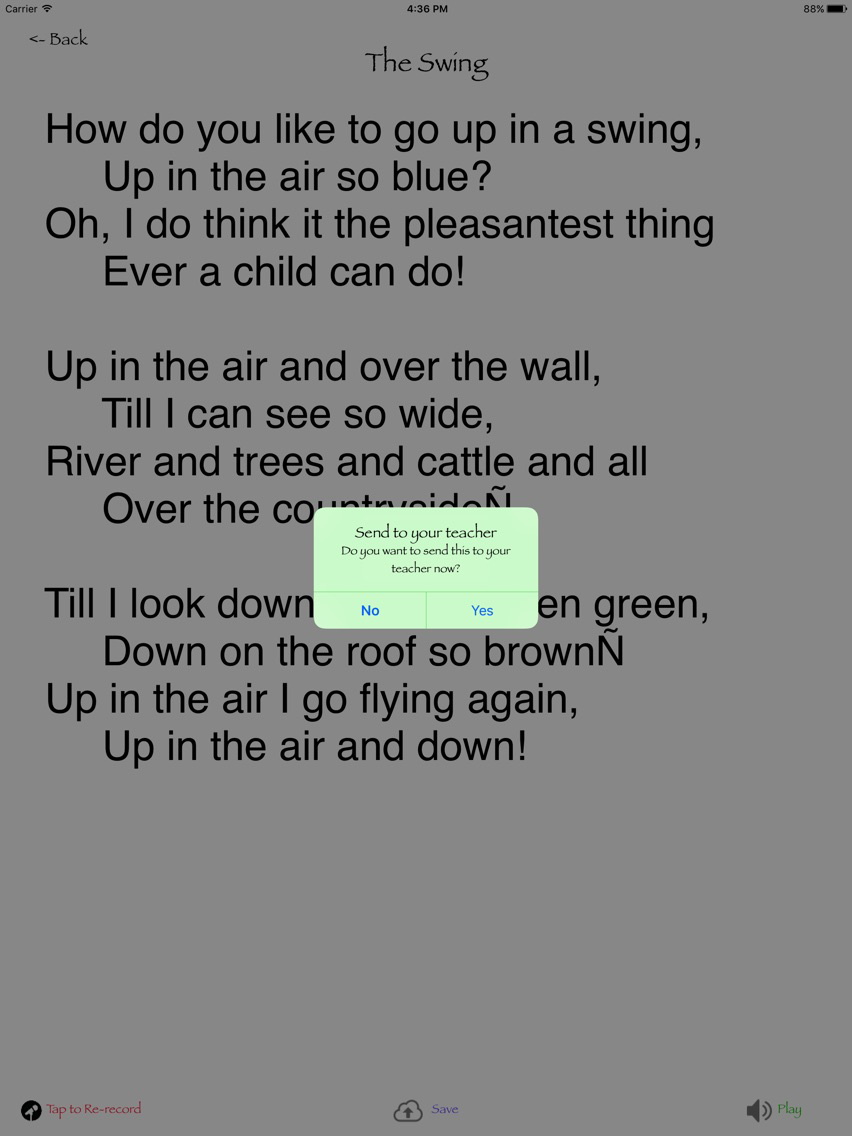
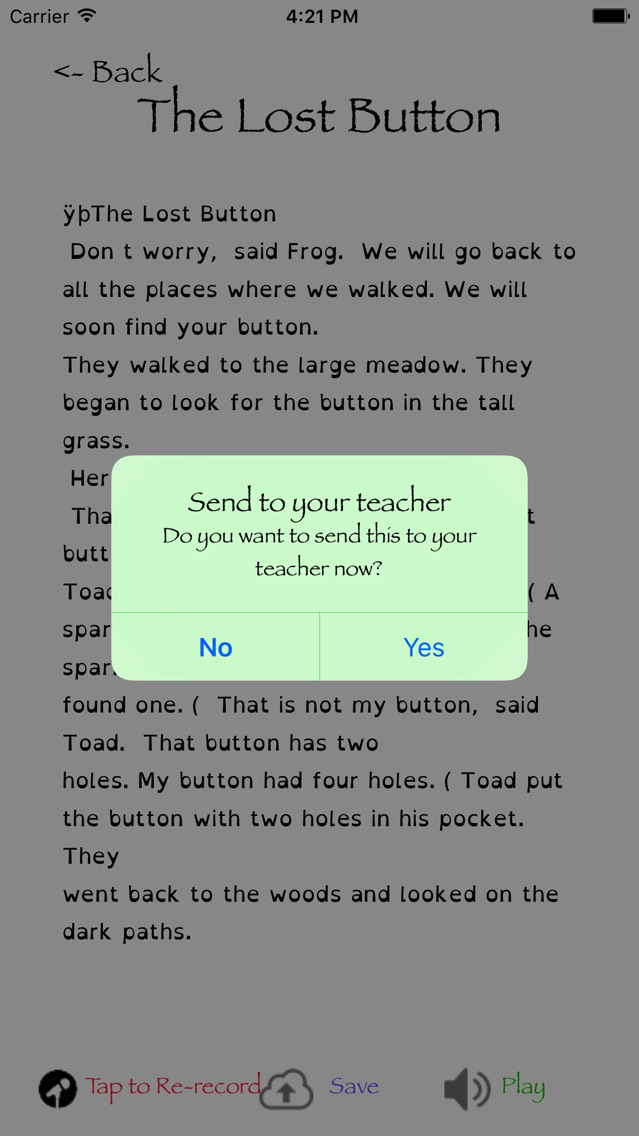
8) Students then can listen to their recording, delete it, or send it to their teacher. To delete a recording swipe right then press delete.
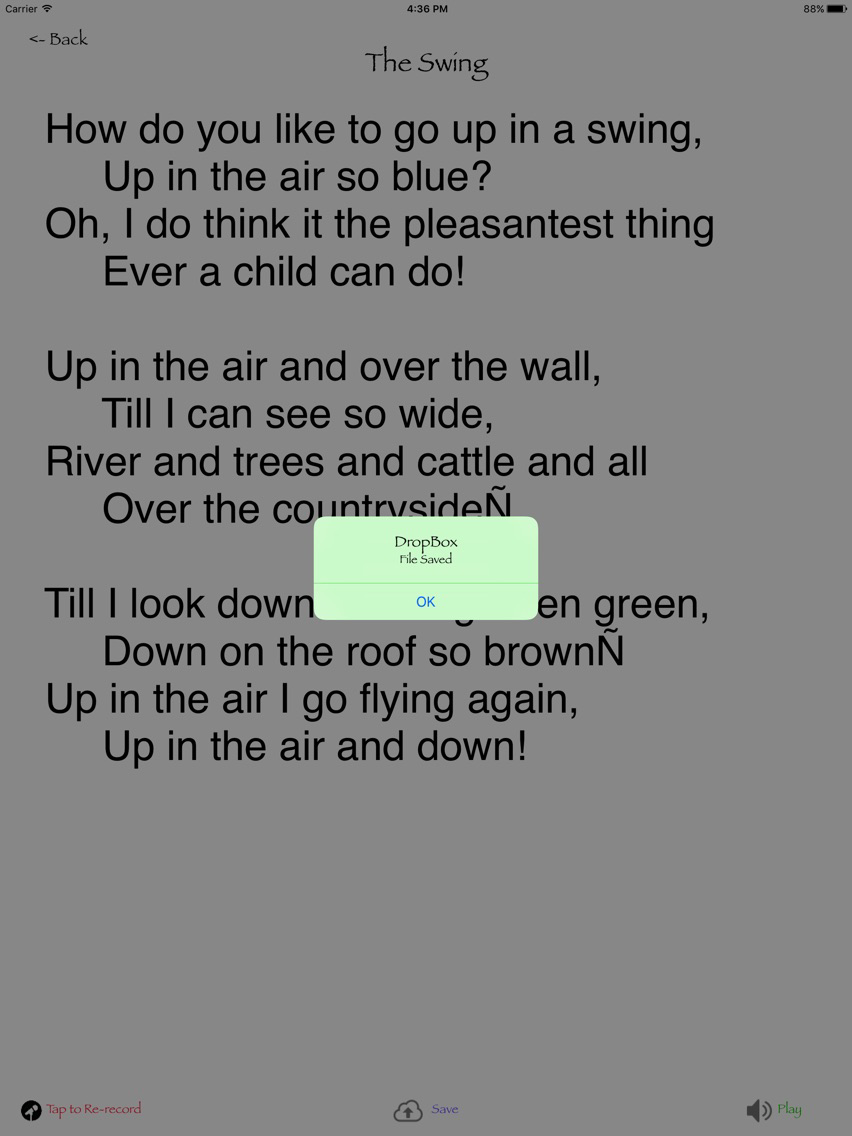
9) After they send it, it will appear in the teacher’s Drop Box account in a new folder called Fluency.
If you have any questions or comments or to get the Fluency Script Editor for your Mac, please visit www.fluencyapp.org.