SolutionView Tablet
Free
2.4.7for iPhone, iPad and more
Age Rating
SolutionView Tablet Screenshots
About SolutionView Tablet
As a contractor, you just know when your tools are designed and built by people who actually use them. You don’t have to fight them; they just work—the same way, every time. The same goes for sales software. You want something that will simplify and standardize the appointment, so every customer has a positive experience—the same way, every time.
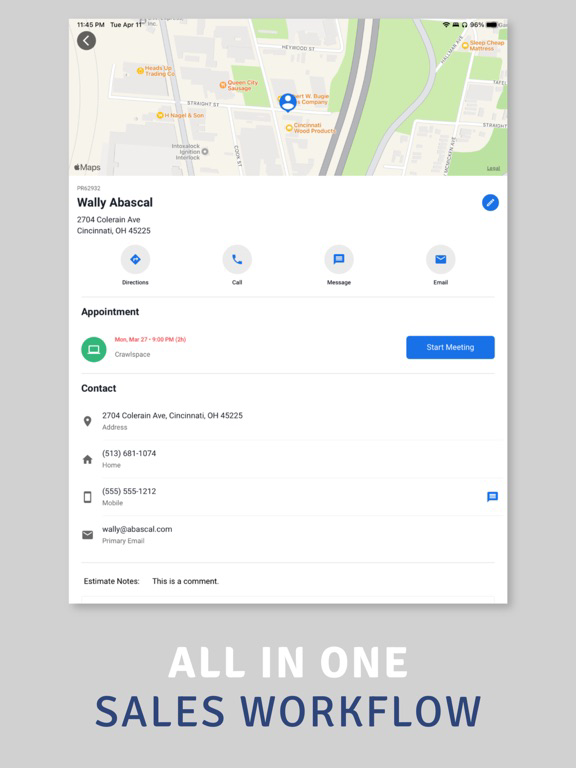
SolutionView Tablet simplifies, standardizes, and maximizes each sales and service appointment.
Features
Homeowner Education – SolutionView Tablet helps walk the customer through the causes of their problems, so they can understand why you’re recommending the full suite of solutions your company offers.
Automated Solutions – When you ask questions like, “Are you interested adding a rain sensor to your system?” and the customer says, “Sure!” – Your company’s preferred rain sensor is automatically added to the Options Page.
Findings – Once the inspection is complete, the findings section helps the user share with the customer all that they’ve found, the cause, and what solutions are needed. SolutionView Tablet makes it easy for a customer to express interest in solutions, and lets them add them to the options page without commitment to purchasing.
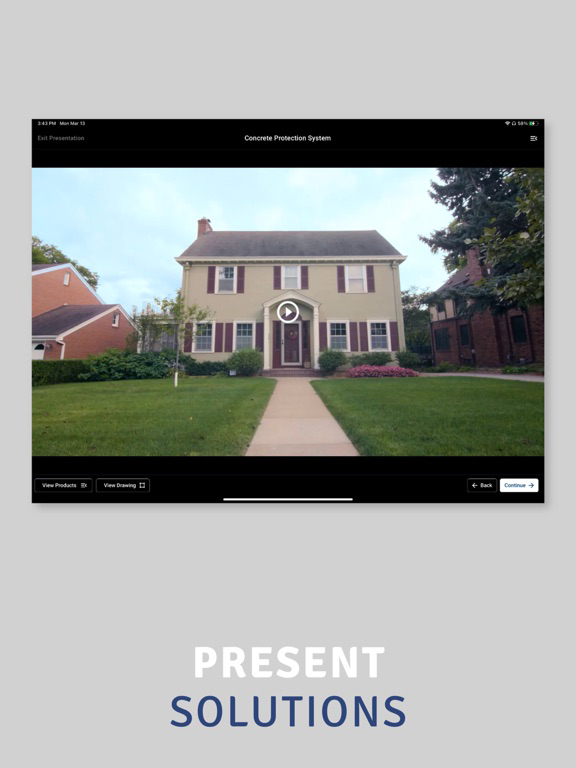
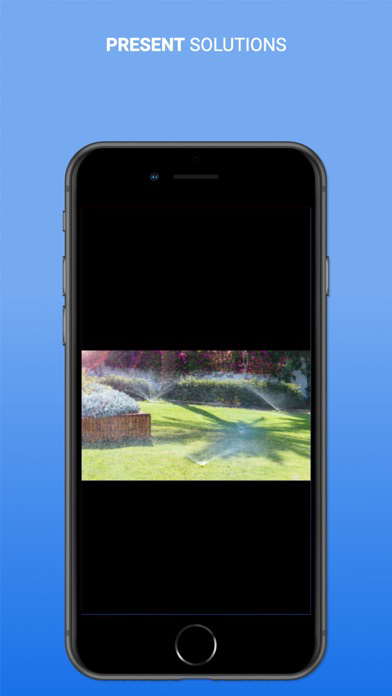
Presentation - For larger projects, use the presentation feature to walk through the different solutions available to them. Each presentation has a follow-up area where they can continue to learn more or add to solution to the options page.
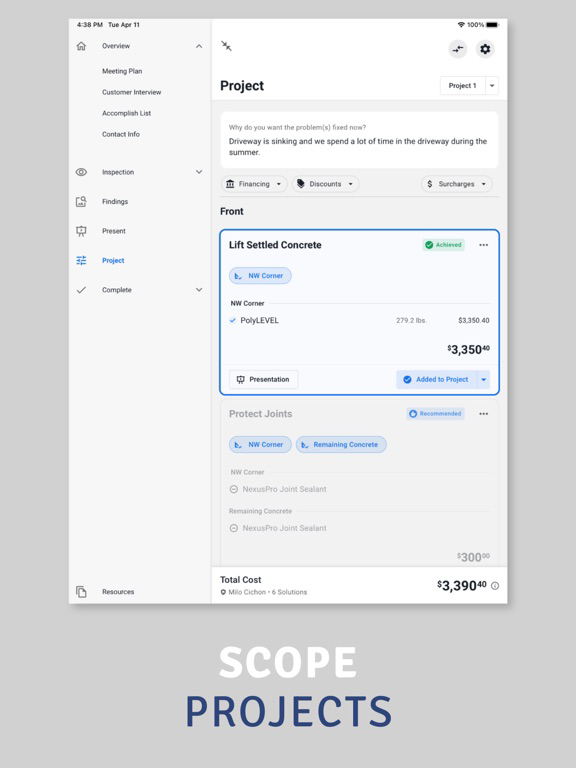
Tiered Options and Right-Sizing – SolutionView Tablet provides three project options for the homeowner to see all that is possible. The options page allows for them to compare projects without the need to leave the screen. The power in this page is that the homeowner can choose & select themselves! As selections are made, prices change. If you offer incentives or financing, apply those right to this page so that the customer see those in consideration into their final project selection.
Proposal and Payment – After the presentation, the homeowner is presented with a professional branded proposal and payment can be taken.
The guided experience that SolutionView Tablet provides from start to finish of an appointment is unmatched and will go a long way for consistent experiences of your company’s brand and overall customer experience. SolutionView Tablet users immediately see their closing percentages and average ticket size go up.
We’re excited for SolutionView Tablet to assist and guiding you in delivering remarkable experiences for your customers.
SolutionView Tablet simplifies, standardizes, and maximizes each sales and service appointment.
Features
Homeowner Education – SolutionView Tablet helps walk the customer through the causes of their problems, so they can understand why you’re recommending the full suite of solutions your company offers.
Automated Solutions – When you ask questions like, “Are you interested adding a rain sensor to your system?” and the customer says, “Sure!” – Your company’s preferred rain sensor is automatically added to the Options Page.
Findings – Once the inspection is complete, the findings section helps the user share with the customer all that they’ve found, the cause, and what solutions are needed. SolutionView Tablet makes it easy for a customer to express interest in solutions, and lets them add them to the options page without commitment to purchasing.
Presentation - For larger projects, use the presentation feature to walk through the different solutions available to them. Each presentation has a follow-up area where they can continue to learn more or add to solution to the options page.
Tiered Options and Right-Sizing – SolutionView Tablet provides three project options for the homeowner to see all that is possible. The options page allows for them to compare projects without the need to leave the screen. The power in this page is that the homeowner can choose & select themselves! As selections are made, prices change. If you offer incentives or financing, apply those right to this page so that the customer see those in consideration into their final project selection.
Proposal and Payment – After the presentation, the homeowner is presented with a professional branded proposal and payment can be taken.
The guided experience that SolutionView Tablet provides from start to finish of an appointment is unmatched and will go a long way for consistent experiences of your company’s brand and overall customer experience. SolutionView Tablet users immediately see their closing percentages and average ticket size go up.
We’re excited for SolutionView Tablet to assist and guiding you in delivering remarkable experiences for your customers.
Show More
What's New in the Latest Version 2.4.7
Last updated on Apr 6, 2026
Old Versions
Here’s what’s new in version 2.4.7
This update brings a cleaner navigation experience, clearer labels and toolbars, stronger presentation support, and several usability improvements throughout the app. We’ve also made it easier to work with drawings, areas, customer information, and key project details during the sales process.
Navigation Enhancements
Details & Resources
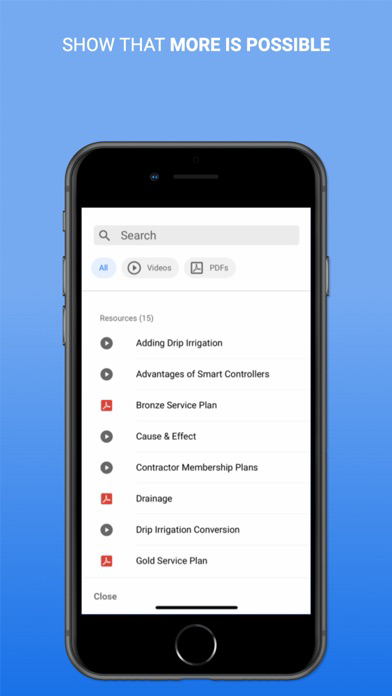
We’ve reorganized navigation to make important tools easier to access. Findings and Notes have moved out of Quick Nav and into a new expandable Details & Resources section at the bottom of the main navigation. This section now includes Photos, Notes, Files, Resources, and AI recording shortcuts.
Quick Nav Improvements
With more room in Quick Nav, the drawing button now includes text as “View Drawing,” and the project goals form button can now be configured to display custom text such as Accomplish List.
Inspection Enhancements
Sub-Areas
Forms can now be configured to use sub-areas only. When enabled, the primary form will guide users to create an area before continuing. We’ve also started simplifying terminology by replacing “sub-area” with “area” to make the experience more universal and easier to understand across different company workflows.
Drawing Enhancements
Styling
We’ve updated the styling of tools across the top, side, and artwork toolbars to include clearer text labels and, in some cases, refreshed icons.
Snap Tool Redesign
The Snap Tool has been redesigned to be easier to find and use. It now features a more visible magnet-style icon and clearer feedback showing how far snapping will engage, whether that’s one inch, six inches, or one foot.
Presentation Enhancements
Theatre Mode
Presentation titles are now displayed below the solution title during presentations for better visibility and context.
Presentation Bottom Bar Updates
There are two new buttons included at the bottom during a presentation. The View Drawing button now opens the new project drawing view, making it easier to review solutions and products visually during presentations. We’ve also added a Customer Why button so users can review the Customer Why at any point in the presentation.
Solution Details and My Project have been removed from the presentation bottom bar.
Findings Enhancements
Details
The label previously shown as Details has been renamed to Inspection to better reflect that this summary comes from the Inspection area of the app.
Project Enhancements
Project Drawing View Calculator Feature
Fields within a form can now be configured to appear within a calculator view while working in the project drawing view. This helps teams display calculations or supporting field data that better explain what is happening with the customer’s property.
Complete Enhancements
Contact Info
Customer contact information is now available in the Complete section for all users. It appears after Payment Details and before Documents, giving teams a better place to confirm the information that will appear on the proposal.
Fixes and Improvements
We fixed an issue that could cause loading loops when accessing previous appointments. We also resolved a problem where the keyboard could obscure parts of the customer referral window on mobile devices. In addition, we addressed several other issues identified through our reporting systems.
Styling Enhancements
Across the app, we’ve updated icons and UI elements to create a clearer and more consistent experience for teams using SolutionView Tablet.
Thanks for choosing SolutionView.

This update brings a cleaner navigation experience, clearer labels and toolbars, stronger presentation support, and several usability improvements throughout the app. We’ve also made it easier to work with drawings, areas, customer information, and key project details during the sales process.
Navigation Enhancements
Details & Resources
We’ve reorganized navigation to make important tools easier to access. Findings and Notes have moved out of Quick Nav and into a new expandable Details & Resources section at the bottom of the main navigation. This section now includes Photos, Notes, Files, Resources, and AI recording shortcuts.
Quick Nav Improvements
With more room in Quick Nav, the drawing button now includes text as “View Drawing,” and the project goals form button can now be configured to display custom text such as Accomplish List.
Inspection Enhancements
Sub-Areas
Forms can now be configured to use sub-areas only. When enabled, the primary form will guide users to create an area before continuing. We’ve also started simplifying terminology by replacing “sub-area” with “area” to make the experience more universal and easier to understand across different company workflows.
Drawing Enhancements
Styling
We’ve updated the styling of tools across the top, side, and artwork toolbars to include clearer text labels and, in some cases, refreshed icons.
Snap Tool Redesign
The Snap Tool has been redesigned to be easier to find and use. It now features a more visible magnet-style icon and clearer feedback showing how far snapping will engage, whether that’s one inch, six inches, or one foot.
Presentation Enhancements
Theatre Mode
Presentation titles are now displayed below the solution title during presentations for better visibility and context.
Presentation Bottom Bar Updates
There are two new buttons included at the bottom during a presentation. The View Drawing button now opens the new project drawing view, making it easier to review solutions and products visually during presentations. We’ve also added a Customer Why button so users can review the Customer Why at any point in the presentation.
Solution Details and My Project have been removed from the presentation bottom bar.
Findings Enhancements
Details
The label previously shown as Details has been renamed to Inspection to better reflect that this summary comes from the Inspection area of the app.
Project Enhancements
Project Drawing View Calculator Feature
Fields within a form can now be configured to appear within a calculator view while working in the project drawing view. This helps teams display calculations or supporting field data that better explain what is happening with the customer’s property.
Complete Enhancements
Contact Info
Customer contact information is now available in the Complete section for all users. It appears after Payment Details and before Documents, giving teams a better place to confirm the information that will appear on the proposal.
Fixes and Improvements
We fixed an issue that could cause loading loops when accessing previous appointments. We also resolved a problem where the keyboard could obscure parts of the customer referral window on mobile devices. In addition, we addressed several other issues identified through our reporting systems.
Styling Enhancements
Across the app, we’ve updated icons and UI elements to create a clearer and more consistent experience for teams using SolutionView Tablet.
Thanks for choosing SolutionView.
Show More
Version History
2.4.7
Apr 6, 2026
Here’s what’s new in version 2.4.7
This update brings a cleaner navigation experience, clearer labels and toolbars, stronger presentation support, and several usability improvements throughout the app. We’ve also made it easier to work with drawings, areas, customer information, and key project details during the sales process.
Navigation Enhancements
Details & Resources
We’ve reorganized navigation to make important tools easier to access. Findings and Notes have moved out of Quick Nav and into a new expandable Details & Resources section at the bottom of the main navigation. This section now includes Photos, Notes, Files, Resources, and AI recording shortcuts.
Quick Nav Improvements
With more room in Quick Nav, the drawing button now includes text as “View Drawing,” and the project goals form button can now be configured to display custom text such as Accomplish List.
Inspection Enhancements
Sub-Areas
Forms can now be configured to use sub-areas only. When enabled, the primary form will guide users to create an area before continuing. We’ve also started simplifying terminology by replacing “sub-area” with “area” to make the experience more universal and easier to understand across different company workflows.
Drawing Enhancements
Styling
We’ve updated the styling of tools across the top, side, and artwork toolbars to include clearer text labels and, in some cases, refreshed icons.
Snap Tool Redesign
The Snap Tool has been redesigned to be easier to find and use. It now features a more visible magnet-style icon and clearer feedback showing how far snapping will engage, whether that’s one inch, six inches, or one foot.
Presentation Enhancements
Theatre Mode
Presentation titles are now displayed below the solution title during presentations for better visibility and context.
Presentation Bottom Bar Updates
There are two new buttons included at the bottom during a presentation. The View Drawing button now opens the new project drawing view, making it easier to review solutions and products visually during presentations. We’ve also added a Customer Why button so users can review the Customer Why at any point in the presentation.
Solution Details and My Project have been removed from the presentation bottom bar.
Findings Enhancements
Details
The label previously shown as Details has been renamed to Inspection to better reflect that this summary comes from the Inspection area of the app.
Project Enhancements
Project Drawing View Calculator Feature
Fields within a form can now be configured to appear within a calculator view while working in the project drawing view. This helps teams display calculations or supporting field data that better explain what is happening with the customer’s property.
Complete Enhancements
Contact Info
Customer contact information is now available in the Complete section for all users. It appears after Payment Details and before Documents, giving teams a better place to confirm the information that will appear on the proposal.
Fixes and Improvements
We fixed an issue that could cause loading loops when accessing previous appointments. We also resolved a problem where the keyboard could obscure parts of the customer referral window on mobile devices. In addition, we addressed several other issues identified through our reporting systems.
Styling Enhancements
Across the app, we’ve updated icons and UI elements to create a clearer and more consistent experience for teams using SolutionView Tablet.
Thanks for choosing SolutionView.
This update brings a cleaner navigation experience, clearer labels and toolbars, stronger presentation support, and several usability improvements throughout the app. We’ve also made it easier to work with drawings, areas, customer information, and key project details during the sales process.
Navigation Enhancements
Details & Resources
We’ve reorganized navigation to make important tools easier to access. Findings and Notes have moved out of Quick Nav and into a new expandable Details & Resources section at the bottom of the main navigation. This section now includes Photos, Notes, Files, Resources, and AI recording shortcuts.
Quick Nav Improvements
With more room in Quick Nav, the drawing button now includes text as “View Drawing,” and the project goals form button can now be configured to display custom text such as Accomplish List.
Inspection Enhancements
Sub-Areas
Forms can now be configured to use sub-areas only. When enabled, the primary form will guide users to create an area before continuing. We’ve also started simplifying terminology by replacing “sub-area” with “area” to make the experience more universal and easier to understand across different company workflows.
Drawing Enhancements
Styling
We’ve updated the styling of tools across the top, side, and artwork toolbars to include clearer text labels and, in some cases, refreshed icons.
Snap Tool Redesign
The Snap Tool has been redesigned to be easier to find and use. It now features a more visible magnet-style icon and clearer feedback showing how far snapping will engage, whether that’s one inch, six inches, or one foot.
Presentation Enhancements
Theatre Mode
Presentation titles are now displayed below the solution title during presentations for better visibility and context.
Presentation Bottom Bar Updates
There are two new buttons included at the bottom during a presentation. The View Drawing button now opens the new project drawing view, making it easier to review solutions and products visually during presentations. We’ve also added a Customer Why button so users can review the Customer Why at any point in the presentation.
Solution Details and My Project have been removed from the presentation bottom bar.
Findings Enhancements
Details
The label previously shown as Details has been renamed to Inspection to better reflect that this summary comes from the Inspection area of the app.
Project Enhancements
Project Drawing View Calculator Feature
Fields within a form can now be configured to appear within a calculator view while working in the project drawing view. This helps teams display calculations or supporting field data that better explain what is happening with the customer’s property.
Complete Enhancements
Contact Info
Customer contact information is now available in the Complete section for all users. It appears after Payment Details and before Documents, giving teams a better place to confirm the information that will appear on the proposal.
Fixes and Improvements
We fixed an issue that could cause loading loops when accessing previous appointments. We also resolved a problem where the keyboard could obscure parts of the customer referral window on mobile devices. In addition, we addressed several other issues identified through our reporting systems.
Styling Enhancements
Across the app, we’ve updated icons and UI elements to create a clearer and more consistent experience for teams using SolutionView Tablet.
Thanks for choosing SolutionView.
SolutionView Tablet FAQ
Click here to learn how to download SolutionView Tablet in restricted country or region.
Check the following list to see the minimum requirements of SolutionView Tablet.
iPhone
Requires iOS 12.4 or later.
iPad
Requires iPadOS 12.4 or later.
iPod touch
Requires iOS 12.4 or later.
SolutionView Tablet supports English