Notas Básicas
Gratis
1.6.1for iPhone, iPad
Age Rating
لقطات الشاشة لـ Notas Básicas
About Notas Básicas
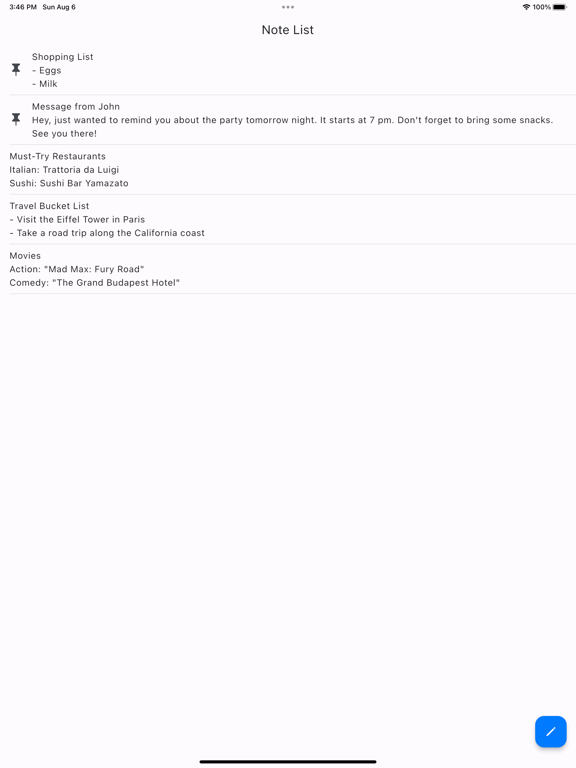
■ "Note List" Screen
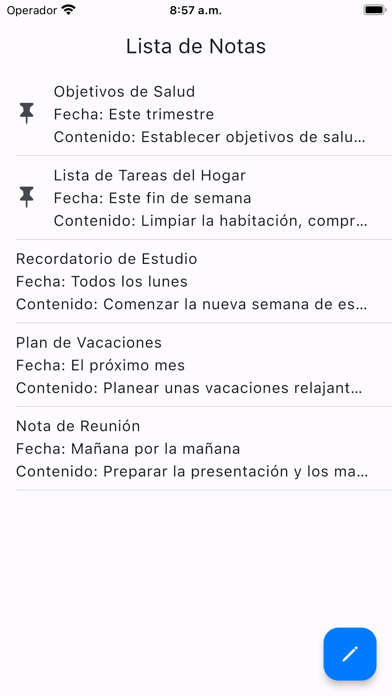
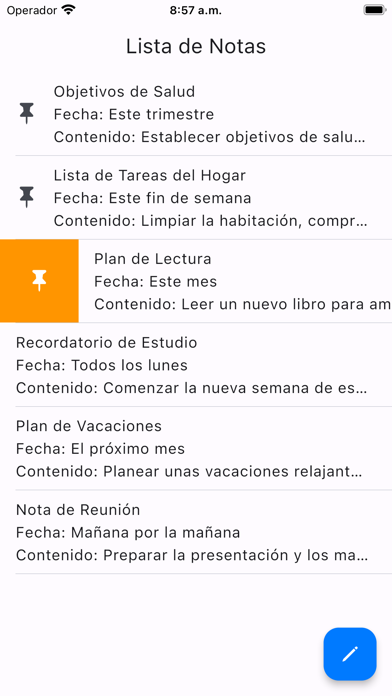
The screen displays a list of saved notes.
When you edit a note, it will automatically appear at the top of the list.
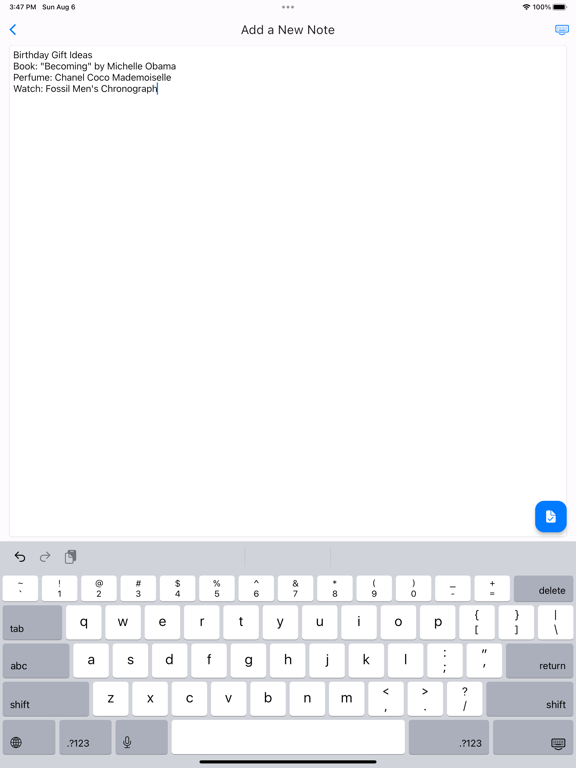
■ Add a note
1. Tap the button at the bottom right of the "Note List" screen.
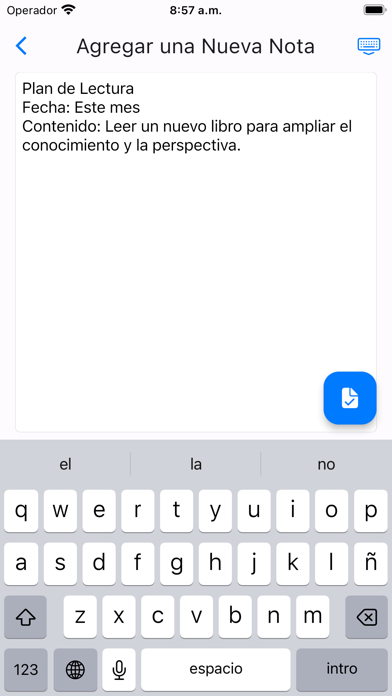
2. After editing on the "Add a New Note" screen, tap the button at the bottom right to save.
*If you go back with a swipe, changes will not be saved.
■ Edit a note
1. Tap the note you want to edit on the "Note List" screen.
2. After making changes on the "Edit the Note" screen, tap the button at the bottom right to save the changes.
*If you go back with a swipe, changes will not be saved.
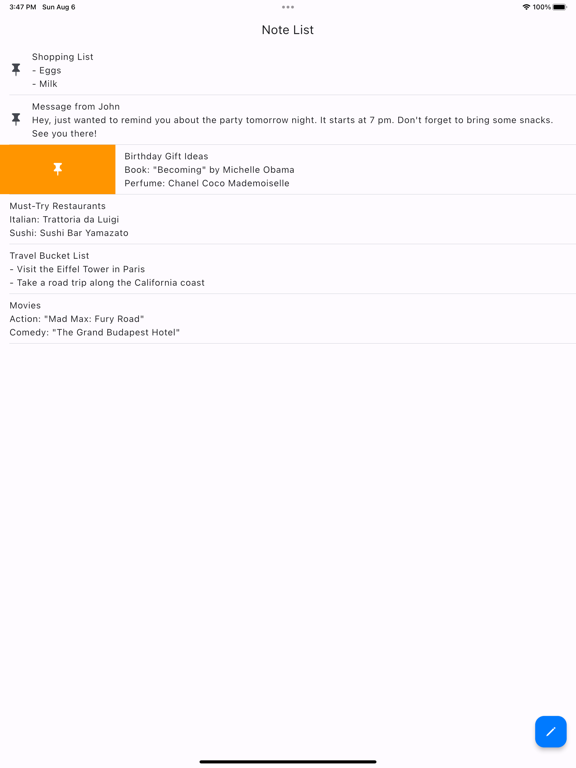
■ Pin/unpin a note
When you pin a note, it will remain at the top of the "Note List" screen.
Pinned notes will show a pushpin icon.
1. On the "Note List" screen, swipe to the right on the note you want to pin.
2. An orange pin icon button will appear, so tap it.
* To unpin a note, perform the same action.
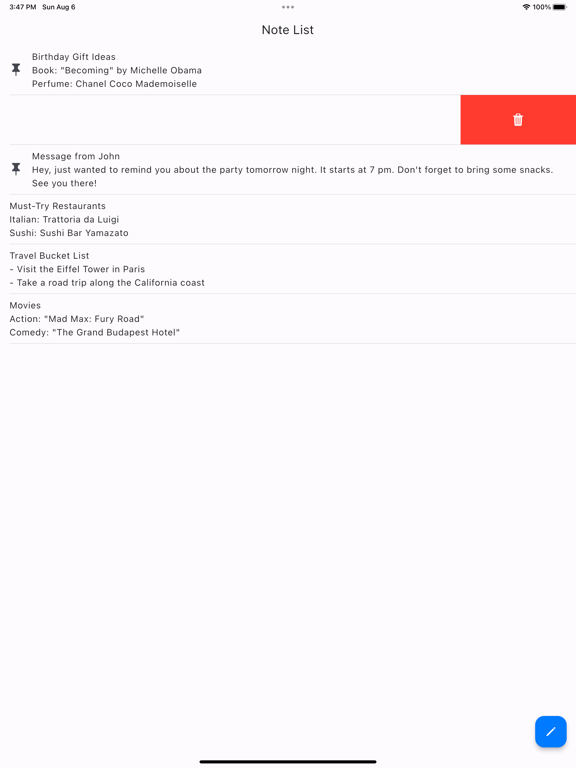
■ Delete a note
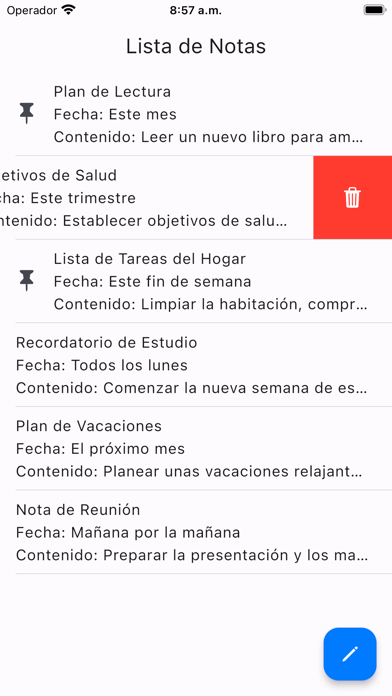
1. On the "Note List" screen, swipe to the left on the note you want to delete.
2. A red trash can icon button will appear, so tap it.
3. A confirmation message will appear, so tap "Delete Note."
※ Deleted notes cannot be restored.

The screen displays a list of saved notes.
When you edit a note, it will automatically appear at the top of the list.
■ Add a note
1. Tap the button at the bottom right of the "Note List" screen.
2. After editing on the "Add a New Note" screen, tap the button at the bottom right to save.
*If you go back with a swipe, changes will not be saved.
■ Edit a note
1. Tap the note you want to edit on the "Note List" screen.
2. After making changes on the "Edit the Note" screen, tap the button at the bottom right to save the changes.
*If you go back with a swipe, changes will not be saved.
■ Pin/unpin a note
When you pin a note, it will remain at the top of the "Note List" screen.
Pinned notes will show a pushpin icon.
1. On the "Note List" screen, swipe to the right on the note you want to pin.
2. An orange pin icon button will appear, so tap it.
* To unpin a note, perform the same action.
■ Delete a note
1. On the "Note List" screen, swipe to the left on the note you want to delete.
2. A red trash can icon button will appear, so tap it.
3. A confirmation message will appear, so tap "Delete Note."
※ Deleted notes cannot be restored.
Show More
تحديث لأحدث إصدار 1.6.1
Last updated on 19/03/2026
الإصدارات القديمة
Se mejoró la estabilidad de la aplicación.
Show More
Version History
1.6.1
19/03/2026
Se mejoró la estabilidad de la aplicación.
Notas Básicas FAQ
انقر هنا لمعرفة كيفية تنزيل Notas Básicas في بلد أو منطقة محظورة.
تحقق من القائمة التالية لمعرفة الحد الأدنى من المتطلبات Notas Básicas.
iPhone
iPad