Notes Basic
무료
1.6.1for iPhone, iPad
Age Rating
Notes Basic 스크린 샷
About Notes Basic
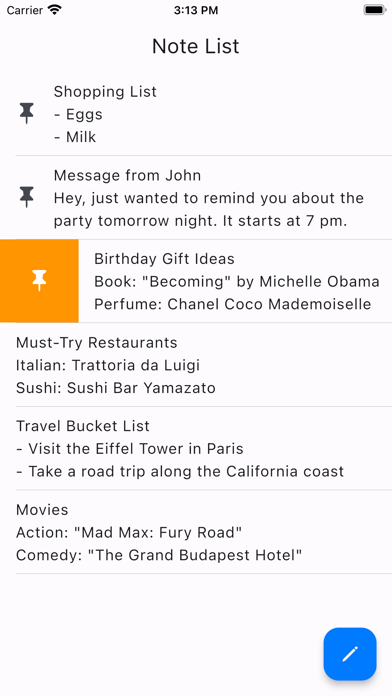
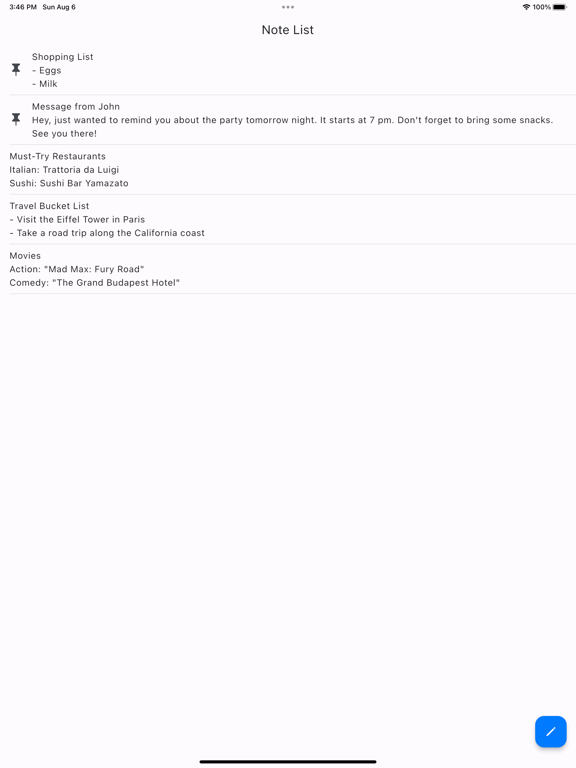
■ "Note List" Screen
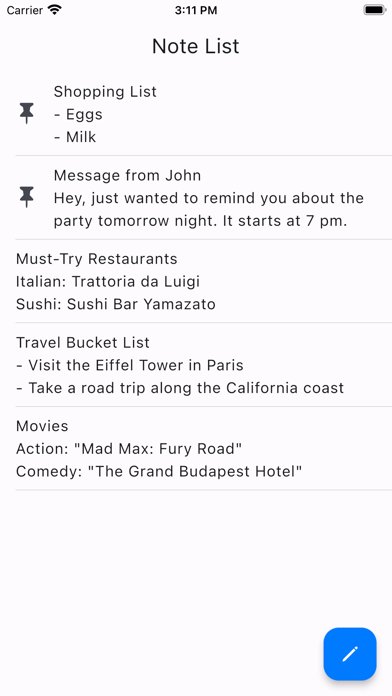
The screen displays a list of saved notes.
When you edit a note, it will automatically appear at the top of the list.
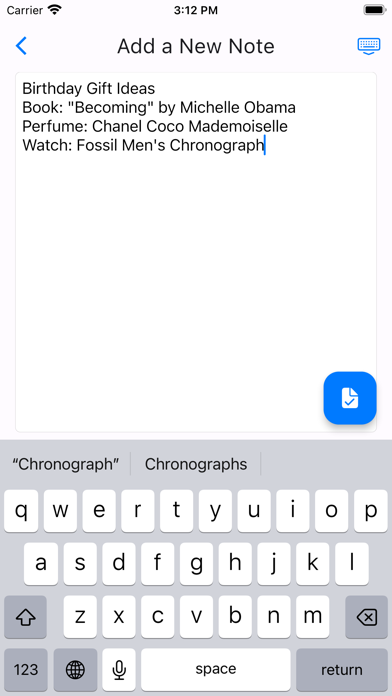
■ Add a note
1. Tap the button at the bottom right of the "Note List" screen.
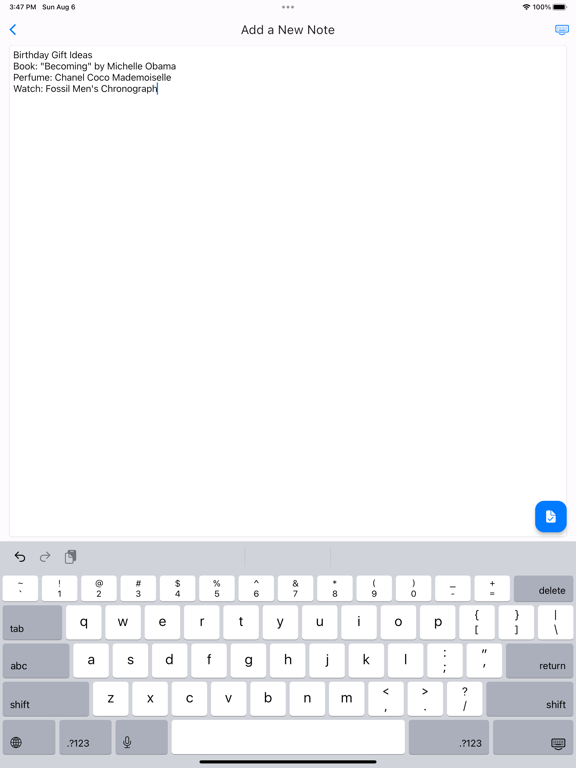
2. After editing on the "Add a New Note" screen, tap the button at the bottom right to save.
*If you go back with a swipe, changes will not be saved.
■ Edit a note
1. Tap the note you want to edit on the "Note List" screen.
2. After making changes on the "Edit the Note" screen, tap the button at the bottom right to save the changes.
*If you go back with a swipe, changes will not be saved.
■ Pin/unpin a note
When you pin a note, it will remain at the top of the "Note List" screen.
Pinned notes will show a pushpin icon.
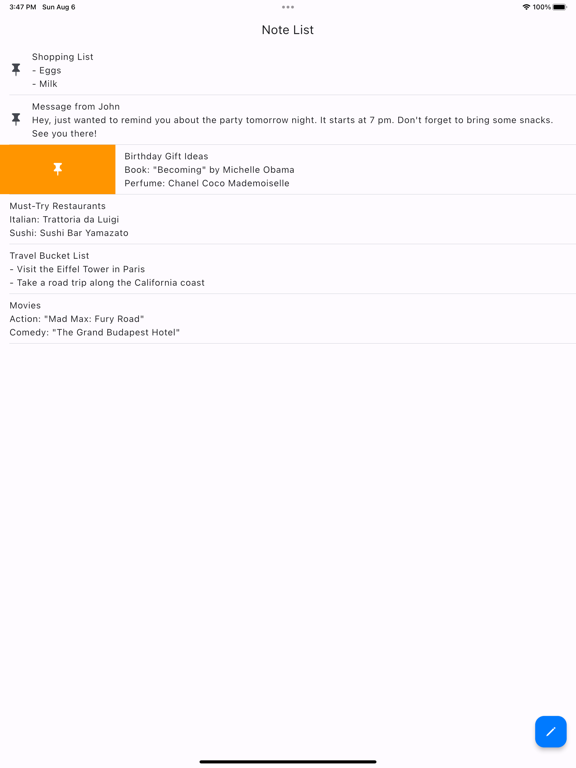
1. On the "Note List" screen, swipe to the right on the note you want to pin.
2. An orange pin icon button will appear, so tap it.
* To unpin a note, perform the same action.
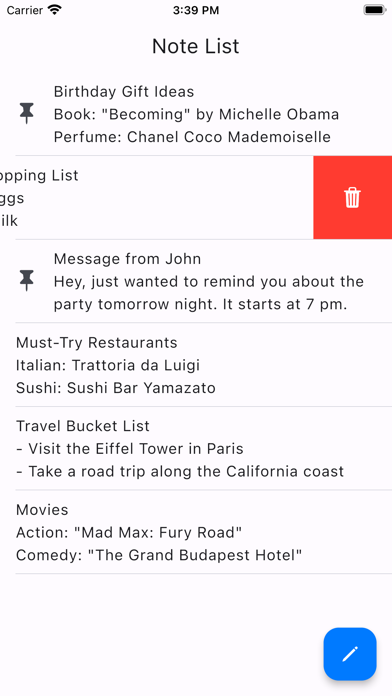
■ Delete a note
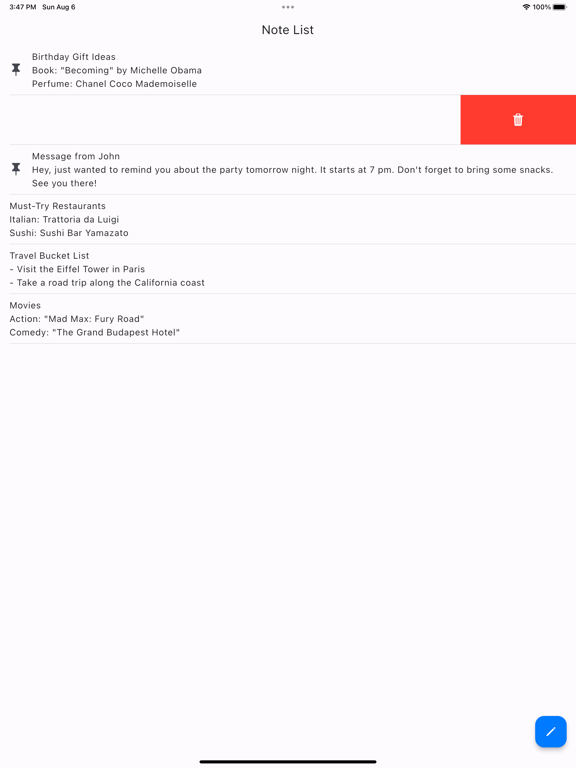
1. On the "Note List" screen, swipe to the left on the note you want to delete.
2. A red trash can icon button will appear, so tap it.
3. A confirmation message will appear, so tap "Delete Note."
* Deleted notes cannot be restored.

The screen displays a list of saved notes.
When you edit a note, it will automatically appear at the top of the list.
■ Add a note
1. Tap the button at the bottom right of the "Note List" screen.
2. After editing on the "Add a New Note" screen, tap the button at the bottom right to save.
*If you go back with a swipe, changes will not be saved.
■ Edit a note
1. Tap the note you want to edit on the "Note List" screen.
2. After making changes on the "Edit the Note" screen, tap the button at the bottom right to save the changes.
*If you go back with a swipe, changes will not be saved.
■ Pin/unpin a note
When you pin a note, it will remain at the top of the "Note List" screen.
Pinned notes will show a pushpin icon.
1. On the "Note List" screen, swipe to the right on the note you want to pin.
2. An orange pin icon button will appear, so tap it.
* To unpin a note, perform the same action.
■ Delete a note
1. On the "Note List" screen, swipe to the left on the note you want to delete.
2. A red trash can icon button will appear, so tap it.
3. A confirmation message will appear, so tap "Delete Note."
* Deleted notes cannot be restored.
Show More
최신 버전 1.6.1의 새로운 기능
Last updated on Mar 19, 2026
오래된 버전
Improved app stability.
Show More
Version History
1.6.1
Mar 19, 2026
Improved app stability.
Notes Basic FAQ
제한된 국가 또는 지역에서 Notes Basic를 다운로드하는 방법을 알아보려면 여기를 클릭하십시오.
Notes Basic의 최소 요구 사항을 보려면 다음 목록을 확인하십시오.
iPhone
iPad