ImageCapture
Free
2.6for iPhone, iPad
Age Rating
ImageCapture Screenshots
About ImageCapture
Capture your product photograph from Alpha Software using Your Mobile
Steps:
If you are using Alpha JSoft Software
Step1 : Open Jsoft in your computer
Step2 : Open Tag Generate
Step3 : Image Capture Desktop application automatically start in your computer
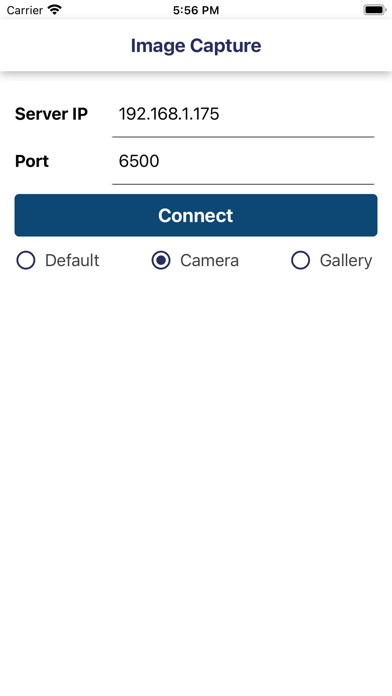
Step4 : Open Image Capture iPhone app in your mobile
Step5 : Enter your computer IP Addres and port default is (6500) (Make sure your computer and mobile must be in same wifi network)
Step6 : Now your mobile and software in connected
Step7 : Select any tag number for example "RG001" and click on Photo Capture in JSoft
Step8 : Now tag number "RG001" show in your mobile
Step9 : Click on tag number and capture photograph
Step10 : Done.. Check in Jsoft.

Steps:
If you are using Alpha JSoft Software
Step1 : Open Jsoft in your computer
Step2 : Open Tag Generate
Step3 : Image Capture Desktop application automatically start in your computer
Step4 : Open Image Capture iPhone app in your mobile
Step5 : Enter your computer IP Addres and port default is (6500) (Make sure your computer and mobile must be in same wifi network)
Step6 : Now your mobile and software in connected
Step7 : Select any tag number for example "RG001" and click on Photo Capture in JSoft
Step8 : Now tag number "RG001" show in your mobile
Step9 : Click on tag number and capture photograph
Step10 : Done.. Check in Jsoft.

Show More
What's New in the Latest Version 2.6
Last updated on Feb 1, 2026
Old Versions
Bug Solve
Show More
Version History
2.6
Feb 1, 2026
Bug Solve
ImageCapture FAQ
Click here to learn how to download ImageCapture in restricted country or region.
Check the following list to see the minimum requirements of ImageCapture.
iPhone
iPad